
When you tell an agent "fix the error I just copied" or "get the JSON from earlier", the agent can look through your OneNotch clipboard history on its own. The connection runs entirely on your Mac and only works while OneNotch is open.
Turn it on and connect an agent
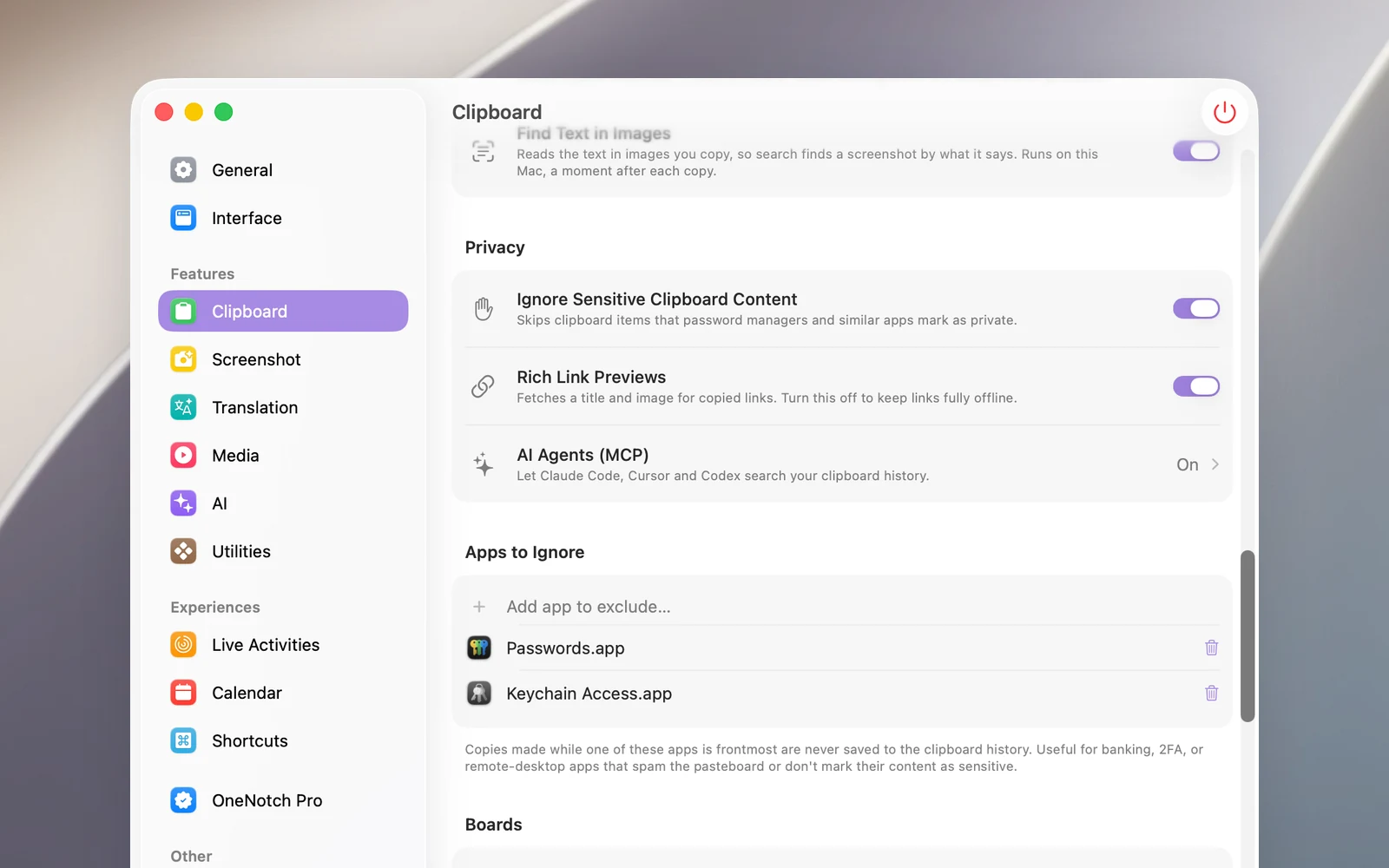
- Go to Settings › Clipboard › Privacy and open AI Agents (MCP).
- Turn on Allow AI agents.
- In the Agents section, click Install on the Claude Code, Cursor or Codex row. OneNotch writes the configuration for that app and backs up the old configuration file.
- Restart the agent so it loads the new tools.
Clicking Install also turns on Allow AI agents.
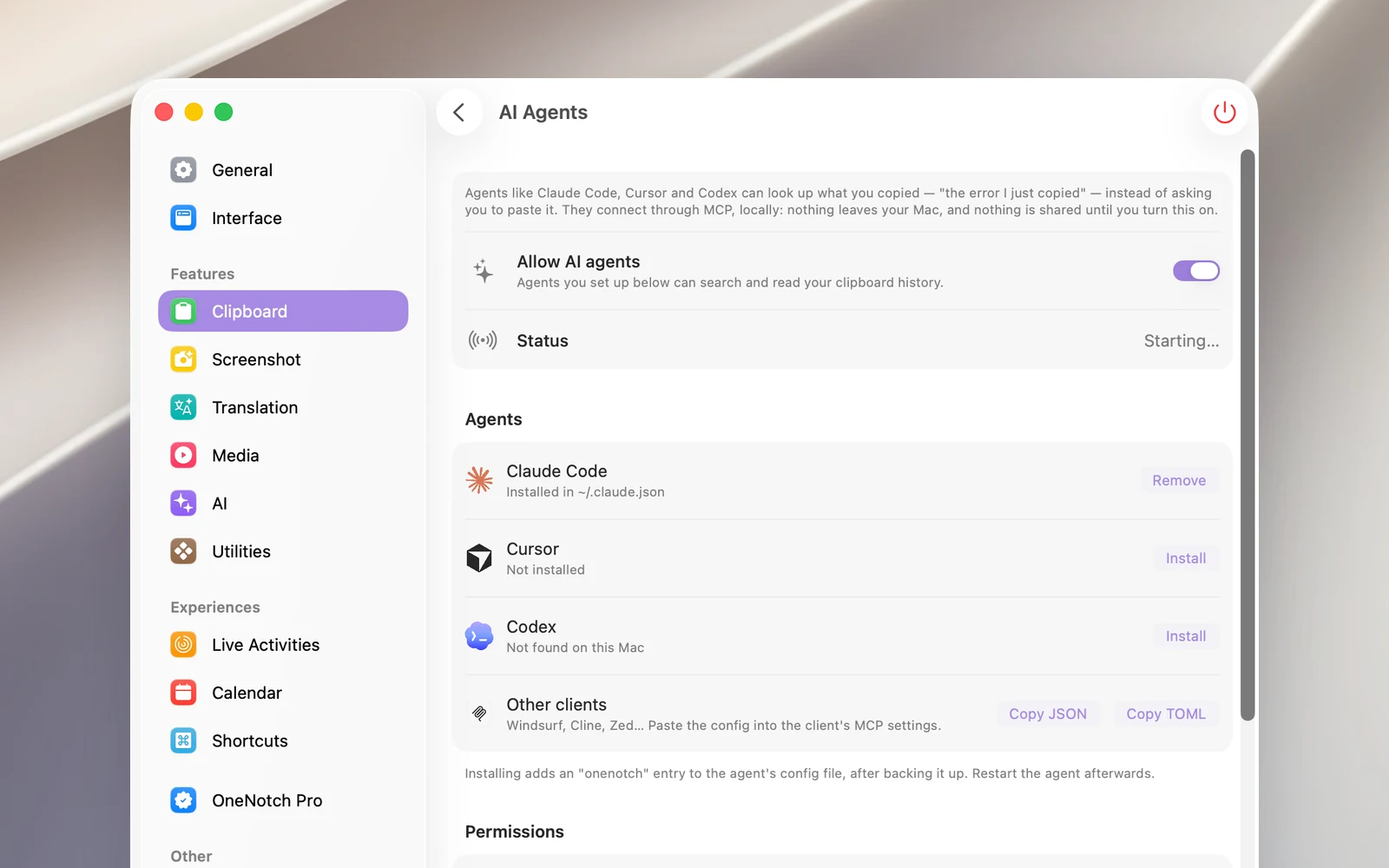
Using another app, like Windsurf, Cline or Zed? In the Other clients section, click Copy JSON or Copy TOML, then paste it into that app's MCP configuration.
The Status row shows whether the connection is ready, waiting, or which agents are connected.
What agents can do
Agents can always see the current clip, search your history (by keyword, content type, source app or time range), read a clip, and see your boards and the items in them.
In the Permissions section, you decide whether they can also:
- Allow agents to copy (on by default): the agent puts content on your clipboard for you to paste. Content an agent creates is saved with the source "AI Agent".
- Allow agents to organize boards (on by default): the agent creates new boards, and pins and unpins items. Agents never rename or delete boards.
Hide content from agents
- Hide clips from password managers (on by default) hides every clip that comes from 1Password, Bitwarden, Passwords, Keychain Access and other popular password managers.
- In the Hidden from Agents section, click Add app to hide… to hide clips from other apps.
- Locked boards are always hidden, even while you have them unlocked.
Disconnect
- Turn off Allow AI agents to stop agents from accessing your clipboard. The configuration in the agent is kept; turn it back on and the agent can use it right away.
- Click Remove on an agent's row to remove OneNotch's configuration from that agent completely.
- When you pause the clipboard, agents can't read anything either.