
When you press the volume, brightness or keyboard backlight keys, OneNotch shows the level right on the notch instead of the large macOS HUD in the middle of the screen.
Turn it on
- Go to Settings › Live Activities › System HUD.
- If you haven't granted permission yet, click Request Accessibility and turn on OneNotch in System Settings.
- Turn on Replace system HUD.
Choose a style
In the Closed Notch section, choose a HUD style:
- Default: the level bar expands below the notch.
- Inline: the icon sits on the left and the level bar on the right of the notch, without making the notch bigger.
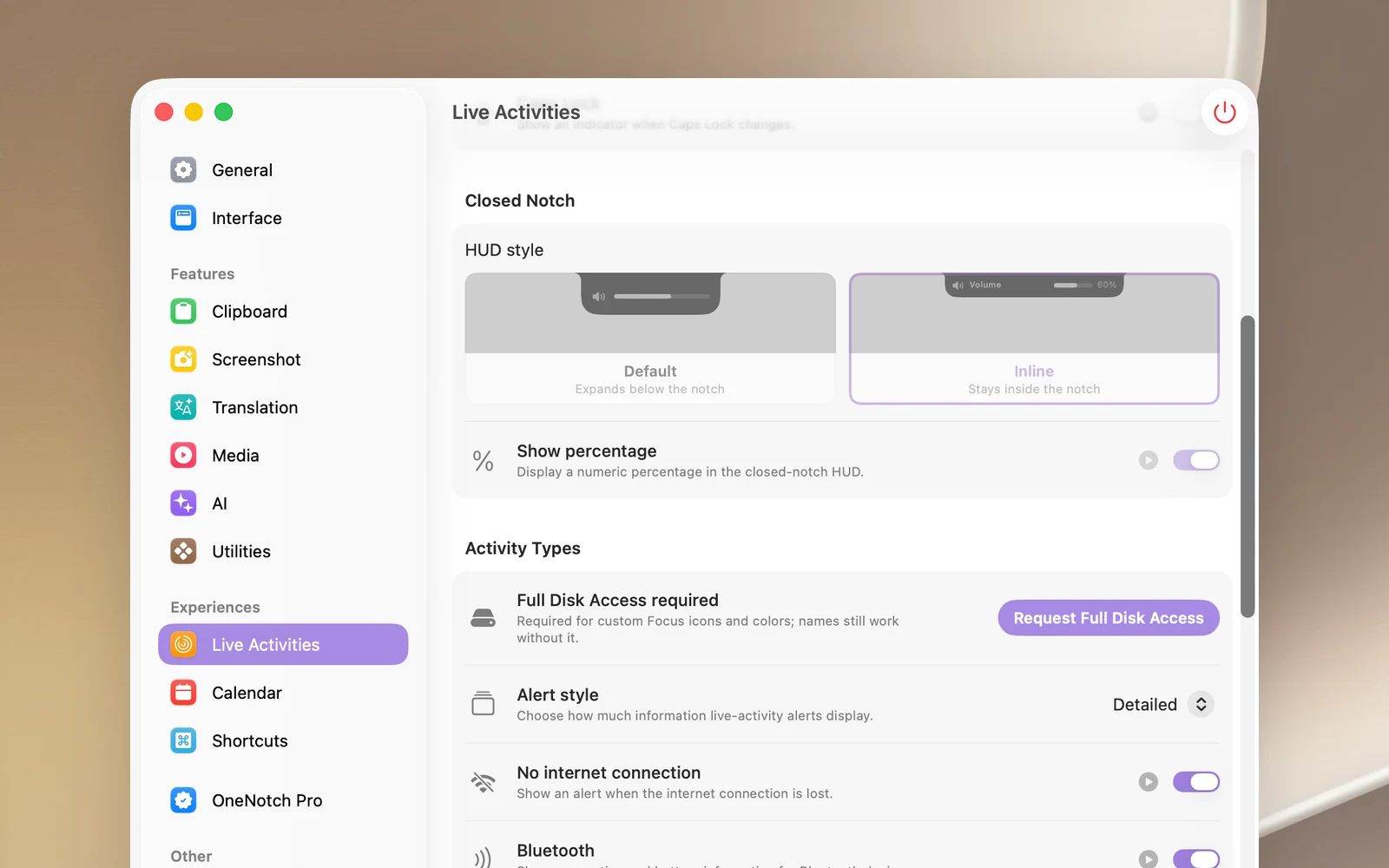
Turn on Show percentage to see the percentage next to the bar. With the Default style, you can also turn on Enable glowing effect. Tint progress bar with accent color uses the OneNotch accent color for the bar.

Tips
- Drag on the bar to change the volume or brightness with your mouse.
- ⌥ + a volume or brightness key opens the matching macOS settings, just like without OneNotch.
- ⌥⇧ + a key adjusts in smaller steps.
- When you only use an external display from another manufacturer, the brightness keys are handed back to macOS.
Note
Replacing the HUD requires Accessibility permission. If the permission is removed, the feature turns off and macOS goes back to its own HUD.