
Draw on Screen lets you circle, underline and point with arrows on top of anything on your screen, including full-screen slides, like using a marker on a whiteboard. Your strokes also appear in a screen share, so your audience sees exactly what you're pointing at.
Start drawing
Choose one of these:
- Open the Presenter page on the notch (its button is in the Right orb by default) and click the Draw tile. The notch closes and the pointer becomes a pen.
- Hover over the teleprompter card and click its Draw button (see "Teleprompter").
- Press the Draw on Screen shortcut. It isn't assigned by default: go to Settings › Shortcuts, click the Draw on Screen field and press the keys you want (for example ⌥⇧D).
While you're drawing, the Draw tile on the page reads Esc to stop.
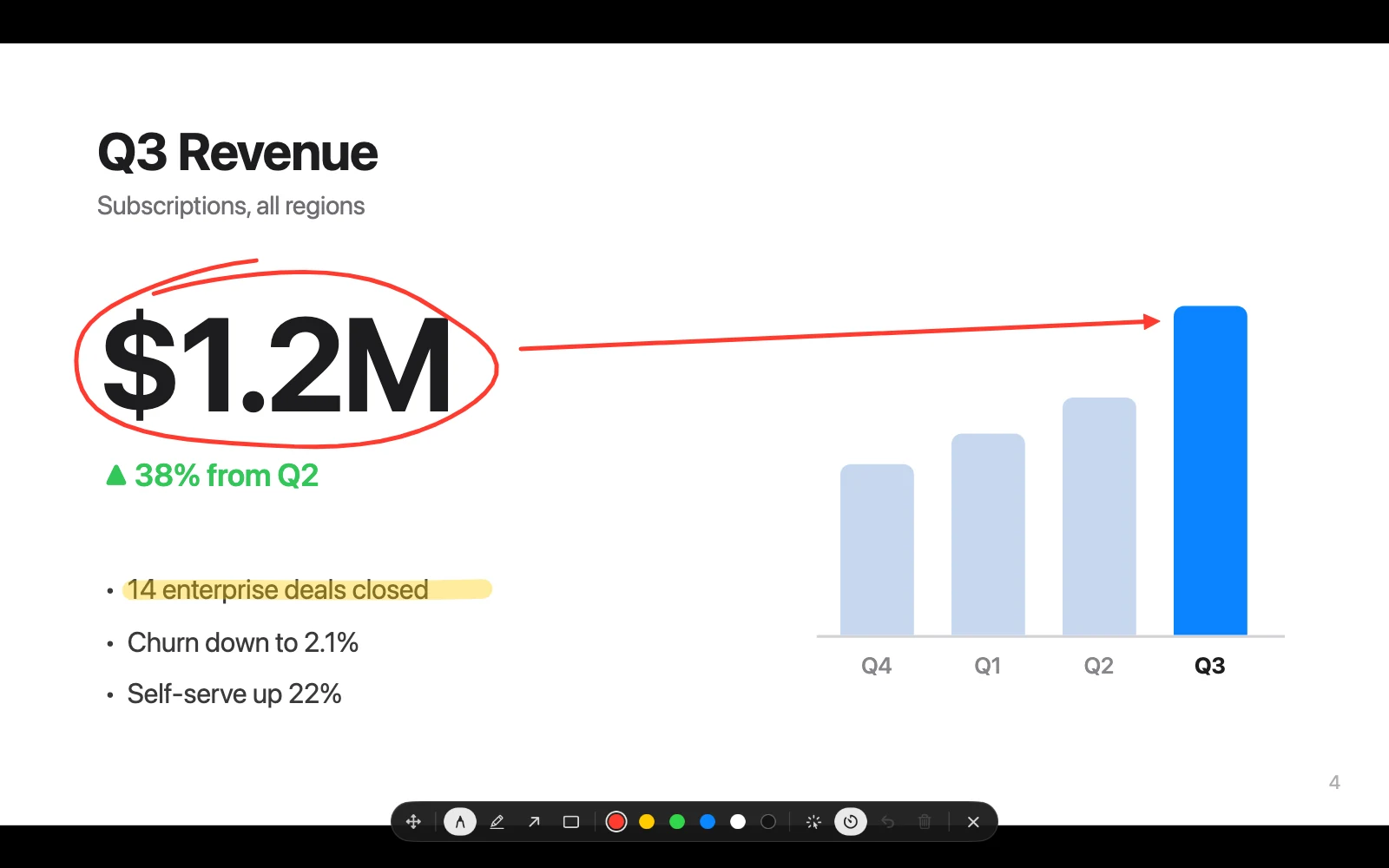
The Draw toolbar
A small toolbar appears on your screen. Drag the handle at its end to move it (Drag to move).
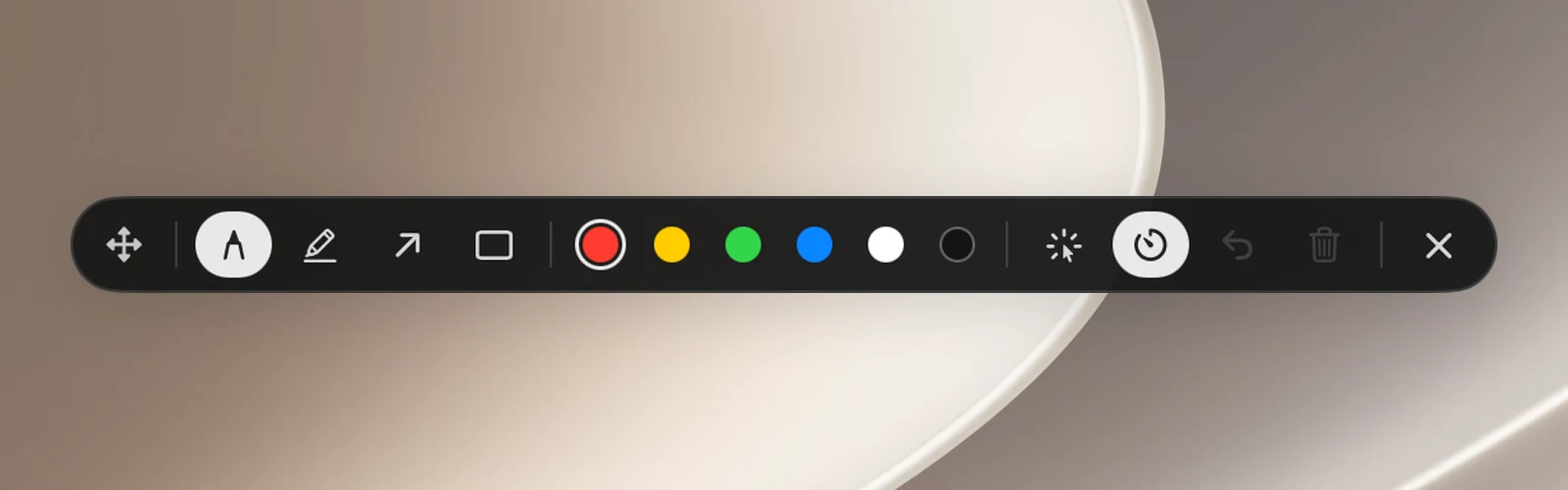
| Button | Key | What it does |
|---|---|---|
| Pen | P | Draws freehand. |
| Highlighter | H | Highlights a line of text or an area. |
| Arrow | A | Drag to draw an arrow. |
| Rectangle | R | Drag to frame an area. |
| 6 colors | 1 … 6 | Changes the stroke color. |
| Ink fades / Ink stays | F | Strokes fade out a few seconds after you draw them (the default), or stay until you clear them. |
| Click through | X | Your strokes stay put, and the mouse and keyboard go back to the app underneath. |
| Undo | ⌘Z | Removes the last stroke. |
| Clear | E or ⌫ | Erases every stroke on the screen. |
| Stop drawing | Esc | Turns off Draw and erases your strokes. |
Letter keys are matched by character, so they work with any keyboard layout.
Click through: draw and use your apps
In Click through mode, your strokes stay on the screen but the mouse and keyboard go straight to the app underneath, for example to advance a slide or click a button in a demo. To draw again, click the Click through button on the toolbar once more, or press the Draw on Screen shortcut.
The Draw on Screen shortcut works in this order: if you aren't drawing, it starts drawing; if you're clicking through, it goes back to drawing; if you're drawing, it stops.
Tips
- Your strokes cover every connected display, including full-screen apps.
- The toolbar is for you, not your audience: OneNotch tries to hide it from screen shares, but it may still show up when you share your entire screen.
- Draw turns off when you lock your Mac or it goes to sleep.
Draw on Screen doesn't need any permissions.