
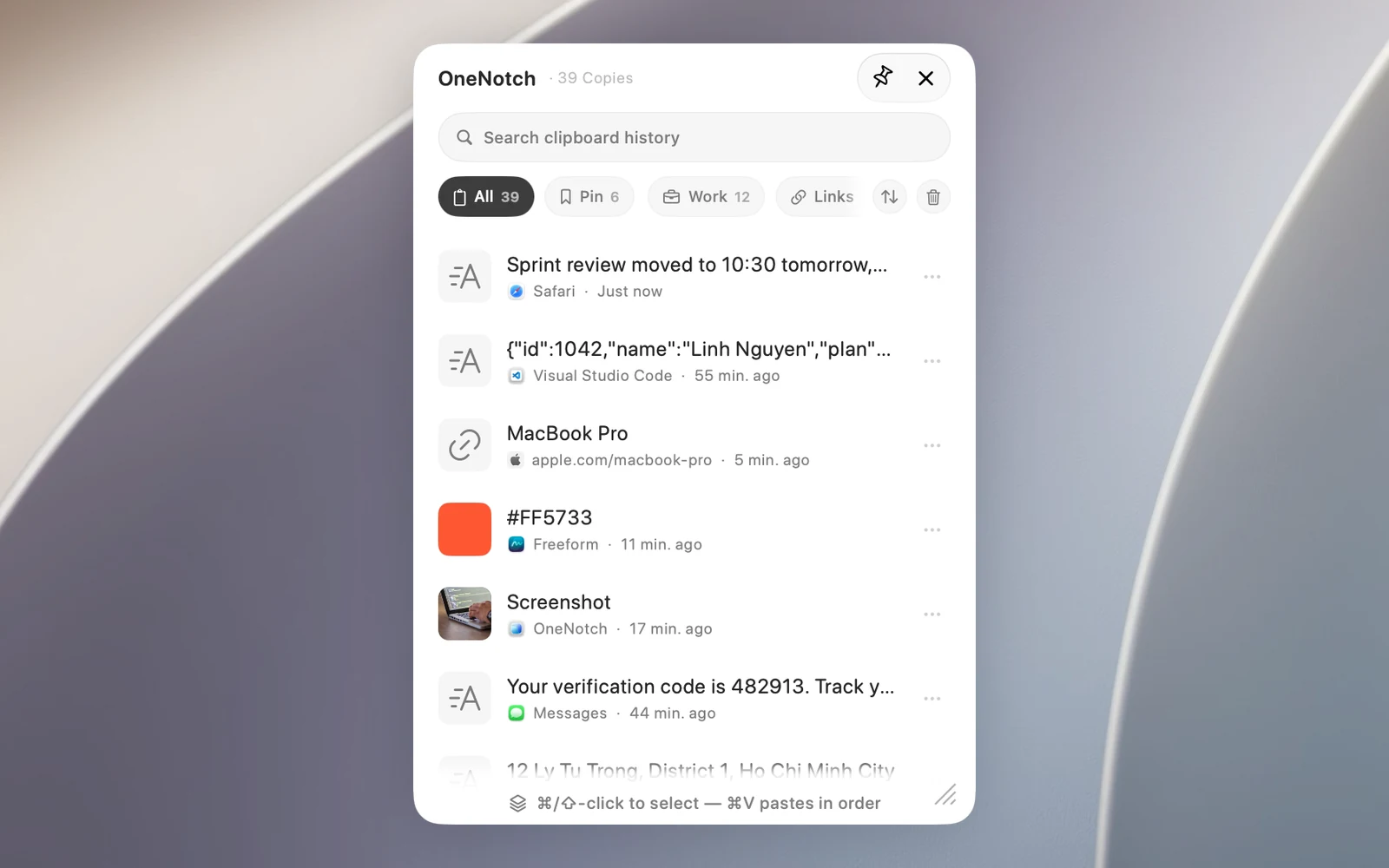
The Clipboard Panel is a floating list with your whole clipboard history and your boards. It opens right next to the pointer, so you don't have to move the pointer up to the notch.
Open the Clipboard Panel
- Press ⇧⌘C anywhere. The panel opens next to the pointer.
- Or click the OneNotch icon in the menu bar › Clipboard › Open Floating Clipboard.
- Or click the floating clipboard button at the end of the row of boards in the notch.
Change the shortcut in Settings › Shortcuts › Open Floating Clipboard.
Use an item
- Click an item to use it. By default the item is copied to your clipboard; you can change this to paste it straight in (see "Paste straight into other apps").
- Or use ↑ ↓ to select it and press Return.
- Hover over an item and click "…" to see actions like Pin, Copy as Plain Text, Edit, Translate and Rename. Right-click for the full menu.
Shortcuts in the panel
- Type to search.
- ↑ ↓ to select, Return to use the selected item.
- Tab / ⇧Tab to switch between boards.
- Esc, one step at a time: clears the search text, clears the filter, clears the paste queue, then closes the panel.
Preview beside the panel
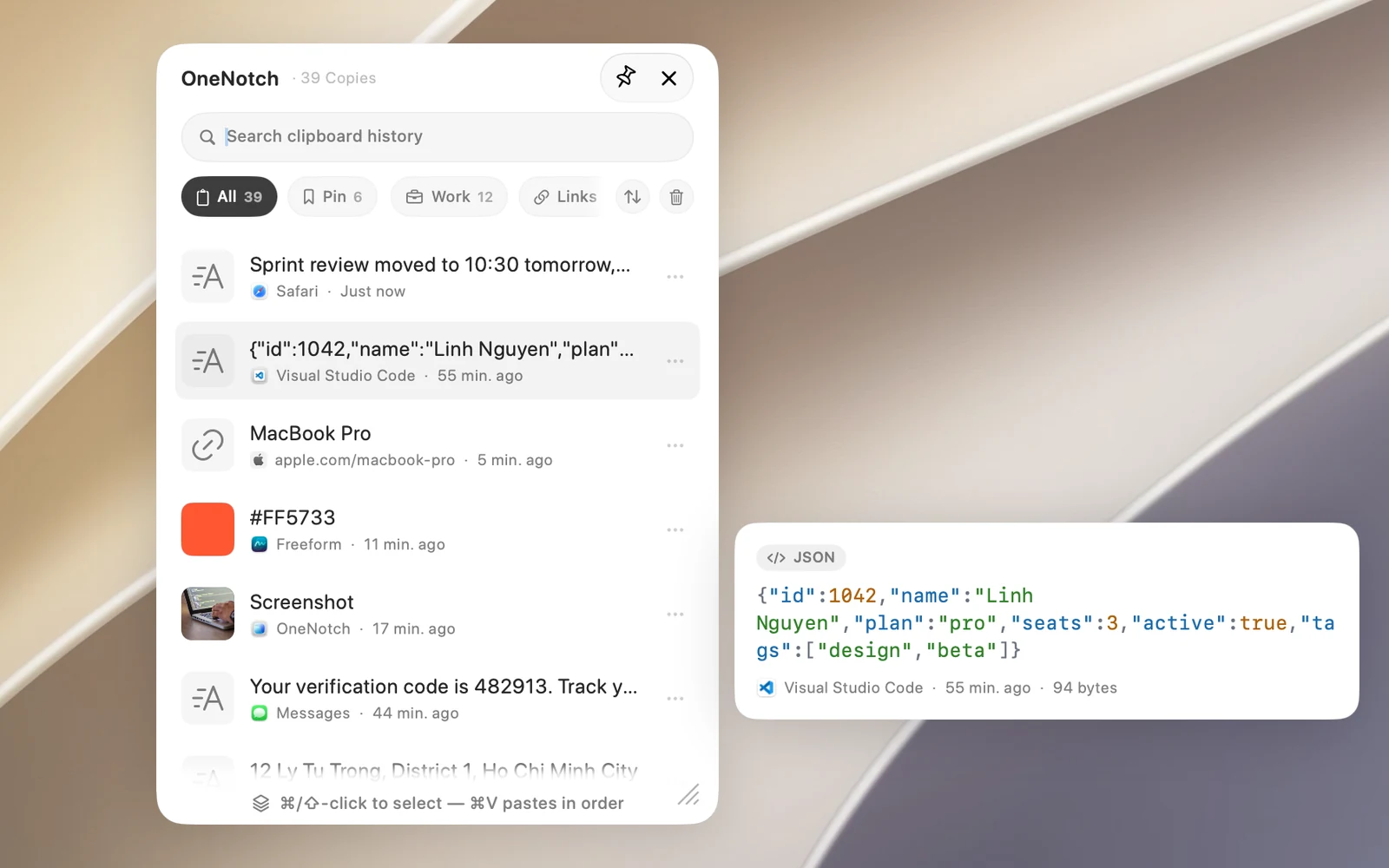
Hover over an item (or select it with the arrow keys) to see all of its content in a preview beside the panel. You can select, scroll and ⌘C part of the content in this preview. Code gets syntax highlighting and a format label; color codes show a large color swatch.
Turn this preview off with Floating Panel Preview in Settings › Clipboard › Appearance.
Keep the panel open
Click the pin button at the top of the panel so it doesn't close when you click outside it. Click it again to unpin.
Size and theme
- Drag the bottom corner to resize the panel, and drag its top to move it. The panel remembers its position and size.
- Choose Light or Dark in Settings › Clipboard › Appearance › Floating Panel Theme. Click Try it to open the panel right away.
Delete what you just copied
Click the trash button at the top of the panel (while viewing All) and choose Last 15 Minutes, Last Hour, Last 24 Hours or Last 7 Days. Items from that time are deleted right away, and items pinned to boards are kept. Clear All History deletes everything after you confirm.