
Teleprompter shows your script in a card right under the camera, on the closed notch, and scrolls it at the speed you choose. Your eyes stay close to the lens, so viewers see you looking right at them.
Teleprompter is part of the Presenter tool, along with Draw on Screen and Presenting.
Open the Presenter page
Click the Presenter button (a person with sound waves) in the notch. By default the button is in the right orb: open the notch and hover over the small arc in the top right corner so the column of buttons drops down. To move the button somewhere else, go to Settings › Interface › Notch layout (see "Customize the notch layout").
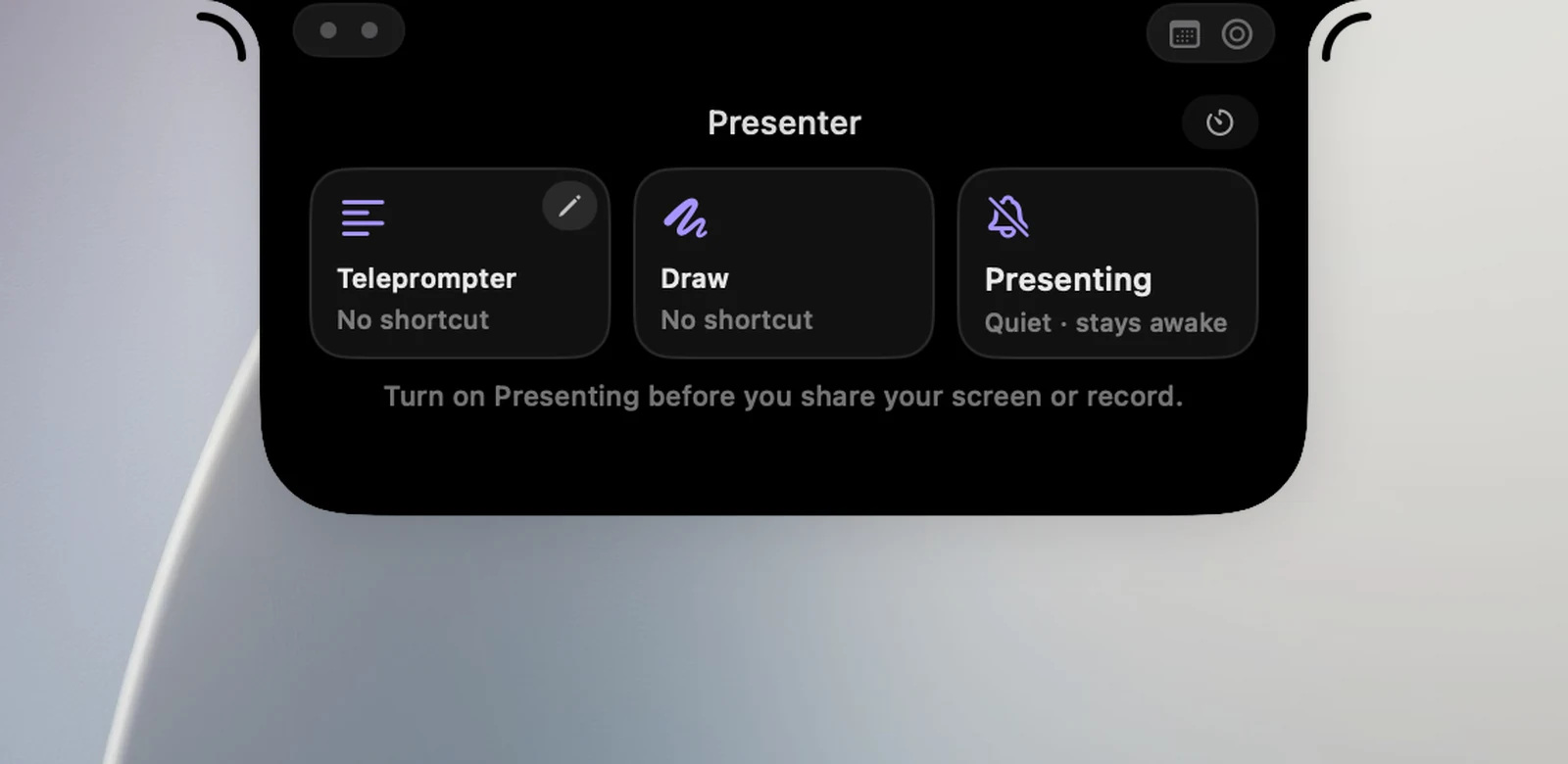
The page has three tiles: Teleprompter, Draw and Presenting. Each tile shows its assigned keyboard shortcut, or No shortcut.
Write or paste your script
- Click the pencil button in the corner of the Teleprompter tile (Edit script). The Teleprompter window opens, much like a note in Notes.
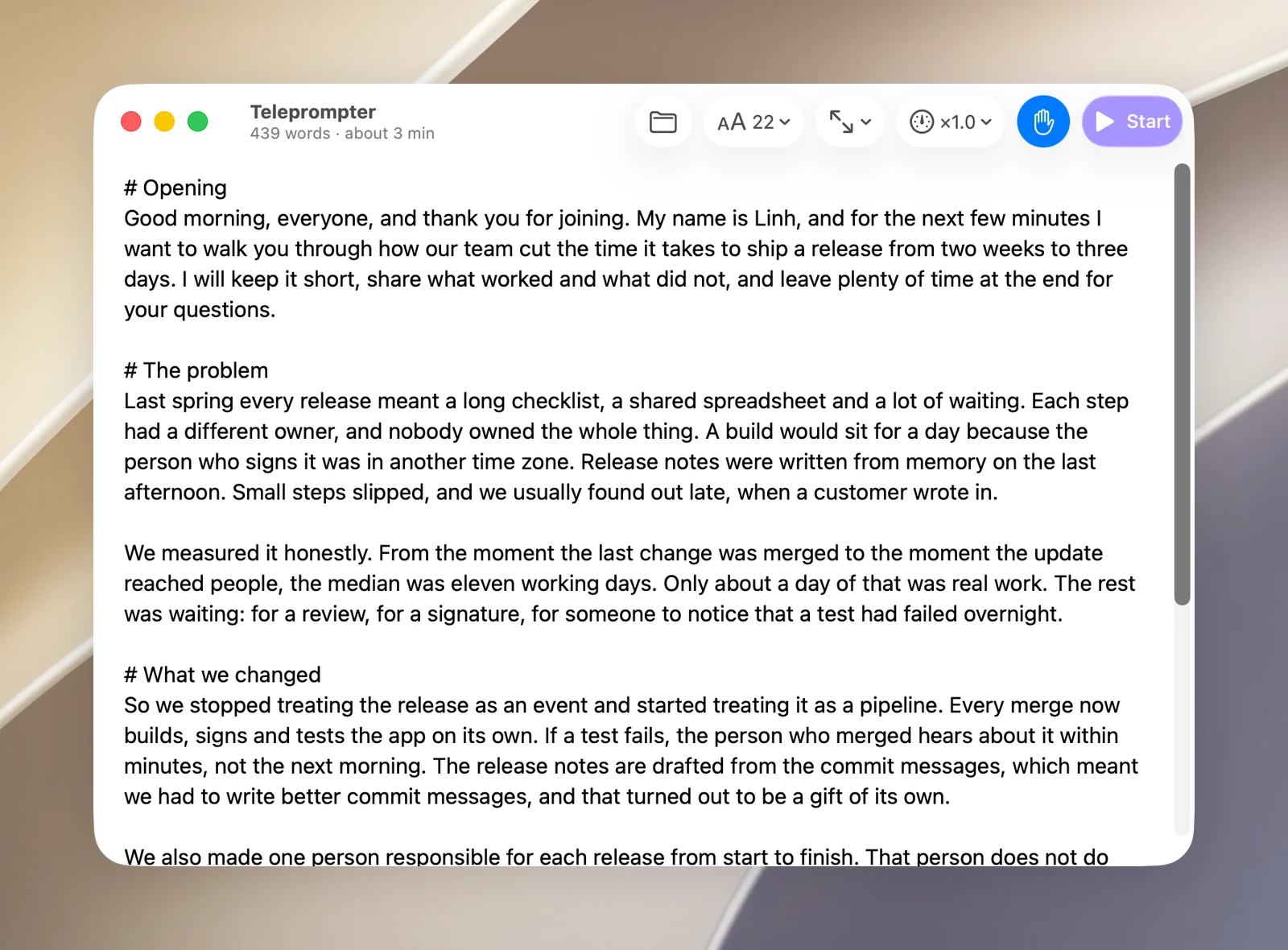
- Paste or type your script, or click Open File… to open a .txt or .md file. A blank line starts a new paragraph.
- Below the window title you see the word count and estimated length, for example 600 words · about 4 min.
Your script is saved automatically. Markdown symbols like **bold** are hidden on the card, so you can paste formatted notes as they are.
Split your script into sections
A line that starts with # begins a new section, for example # Intro, # Demo, # Q&A. The card shows the name of the section you're reading in the corner of its header.
When you hover over the card, a rail of marks appears in the left margin, one mark per section. Move the pointer along the rail to preview the name and first few lines of each section; click a mark or the preview to jump to that section. While it's running, ⌥⇧. jumps to the next section and ⌥⇧, goes back to the start of this section (or the previous one).
Run the teleprompter
- Click the Teleprompter tile on the Presenter page, or Start in the script window. The notch closes. If you don't have a script yet, the script window opens so you can write one first.
- The card appears under the camera, counts down 3 seconds, then starts scrolling. The small ring in the header shows how far you've read.
- Read the brightest line. The lines above and below fade out.
Turning on the teleprompter also turns on Presenting: OneNotch stays quiet, your Mac stays awake, and the talk clock starts. Turning off the teleprompter leaves Presenting on, so you still have it for Q&A. See "Presenting: quiet, talk clock and pace".
Controls while it's running
Hover over the card and it pauses (if Hovering the card pauses is on) and shows these buttons:
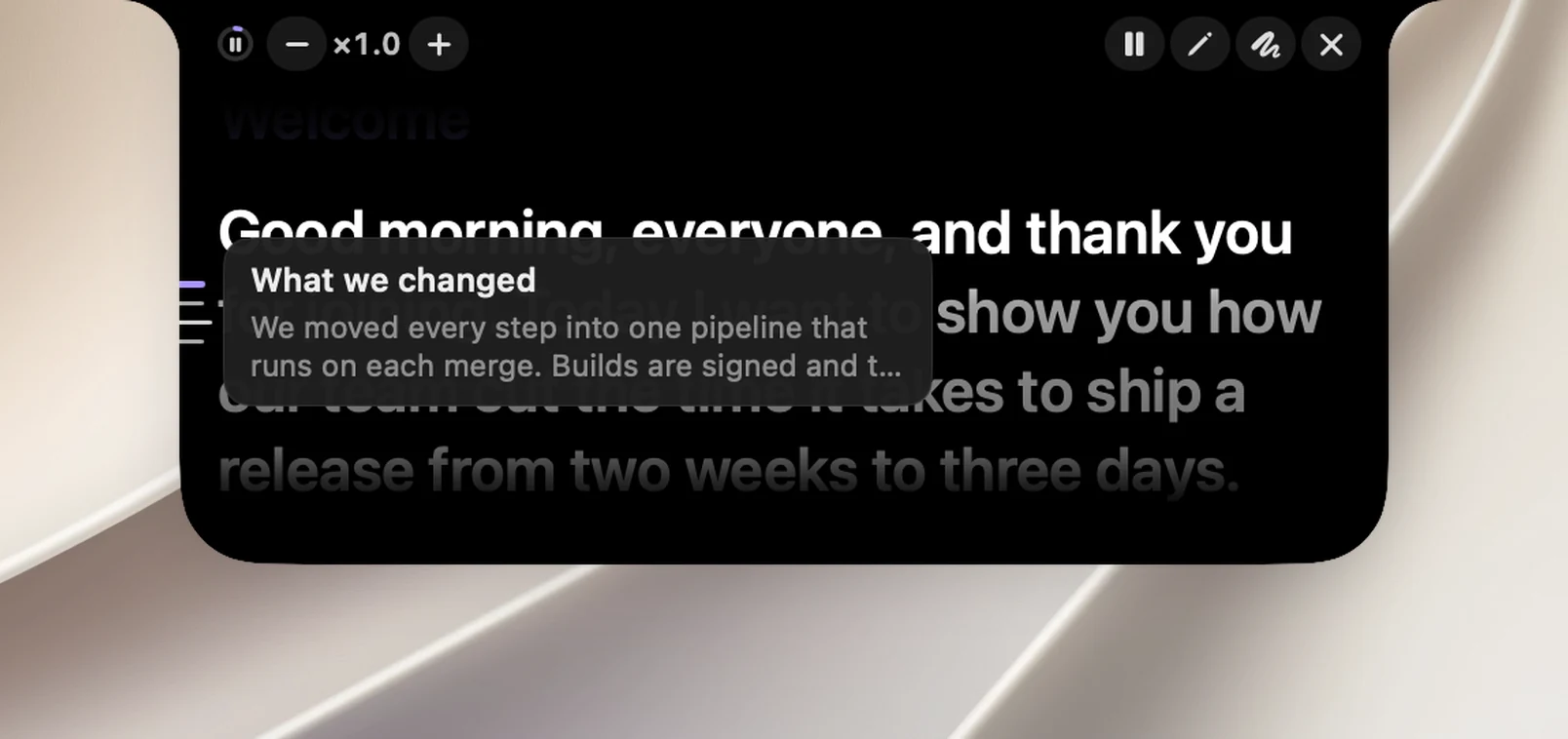
- − / +: slower, faster. The number in the middle is the current speed, from ×0.4 to ×3.0.
- ▶ / ⏸: resume or pause.
- ✎: pauses the card and opens the script for editing.
- Draw: turns on Draw on Screen (see "Draw on Screen").
- ✕ Stop teleprompter.
On a narrow card, the Draw button and − / + are hidden to make it fit.
Keyboard shortcuts while the teleprompter is running:
| Action | Keys |
|---|---|
| Faster | ⌥⇧↑ |
| Slower | ⌥⇧↓ |
| Back a few lines | ⌥⇧← |
| Next section | ⌥⇧. |
| Previous section | ⌥⇧, |
These keys only work while the card is running; the rest of the time, they belong to the app you're using. Teleprompter: Play / Pause has no shortcut assigned by default. If you want a key to start and stop the card from anywhere, assign one in Settings › Shortcuts (we suggest ⌥⇧T).
Edit the script while it's running
Click ✎ on the card. The card pauses and the script window opens with the line The card updates as you type. Edit anywhere you like: the card updates in place and keeps your reading position. Close the window and the card resumes, and the keyboard goes back to the app you were using before (for example Keynote).
While the card is running, the Start button in the script window changes to Start Over.
End of the script
At the end of the script, the card shows a ↺ Start Over button. If you don't touch it, the card turns off on its own after 8 seconds. Locking the screen or putting your Mac to sleep also stops the teleprompter.
Customize the card
In the toolbar of the script window:
- Text size: Smaller text, Larger text, or choose a size from 16 to 40 (default 22).
- Card size: Width Narrow, Medium (default) or Wide; Lines to read, 3, 4 (default) or 5.
- Speed: Slower, Faster, or choose from ×0.4 to ×3.0 (default ×1.0).
- Hovering the card pauses: on by default.
When you share your screen
The teleprompter card is for the speaker only. In the app's words: Hidden from screenshots and from most meeting apps when you share a window. A whole-screen share, QuickTime or OBS may still show it. So in meetings or presentations, share a window (for example the Keynote window) rather than your whole screen, and test it first with the app you use.
Teleprompter needs no permissions.