
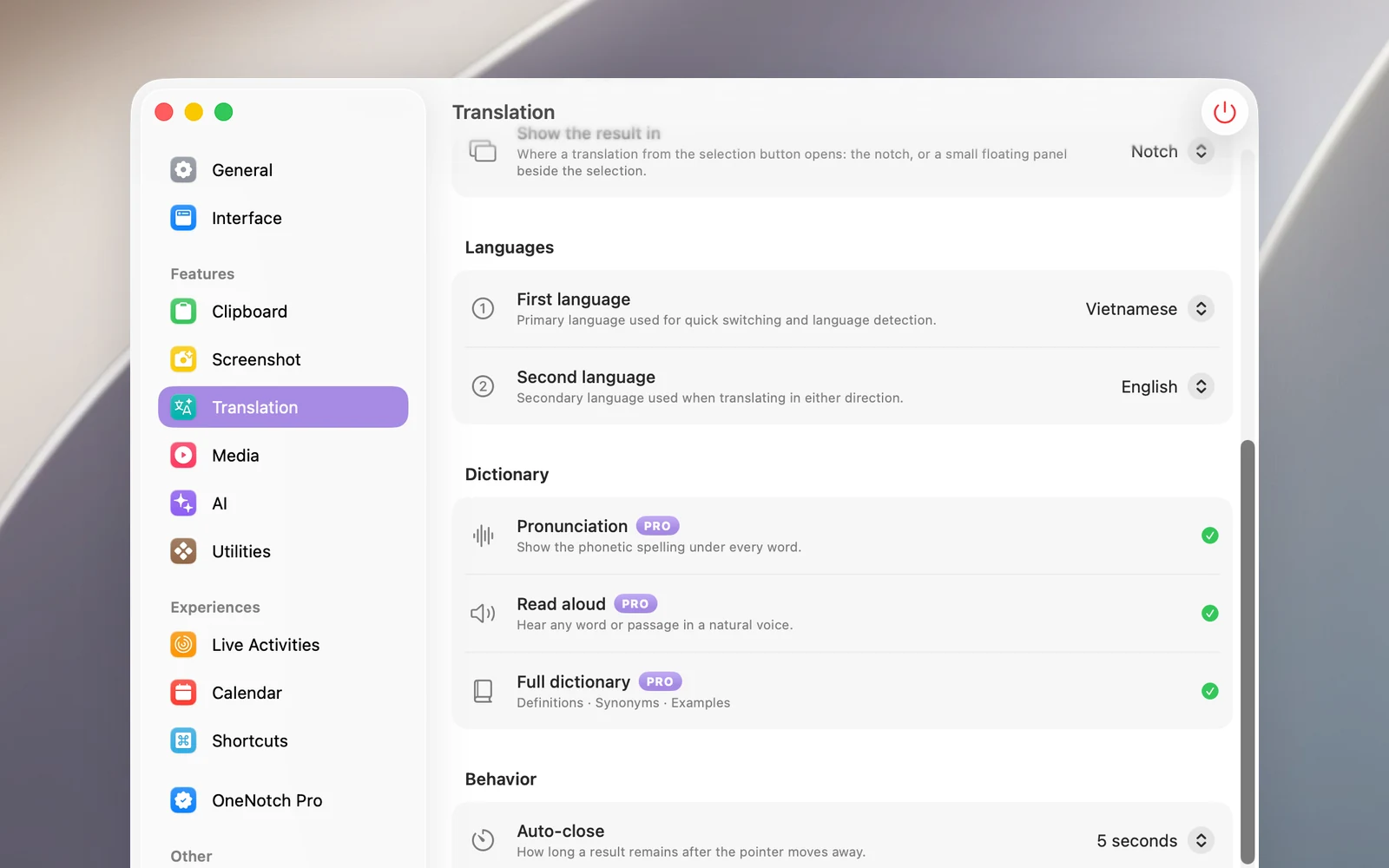
OneNotch translates between two languages you choose: text in your First language is translated into your Second language, and every other language is translated into your First language. You can change the direction right on the result.
Set your two languages
Go to Settings › Translation › Languages and choose a First language and a Second language. There are 20 languages to choose from, including Vietnamese, English, Simplified and Traditional Chinese, Japanese, Korean, Thai, Indonesian, French, German and Spanish.
Fix a wrongly detected language
At the top of the translation result is a chip like "Source language → Target language". If OneNotch guesses the language of the original text wrong, click the source language name and choose the right language. The text is translated again right away.
Translate into another language
Click the target language name and choose another language. OneNotch remembers this choice for each source language: for example, if you choose to translate Japanese into English, from then on all Japanese text is translated into English, while other languages stay as they were. To go back to how it was, choose the language labeled Default again.
Translate back with ⇄
Hover over the arrow between the two language names, and it turns into ⇄. Click it to use the translation as the source and translate it back into the original language, handy for checking whether a sentence you just wrote will be understood correctly. Click ⇄ again to go back to the original text.
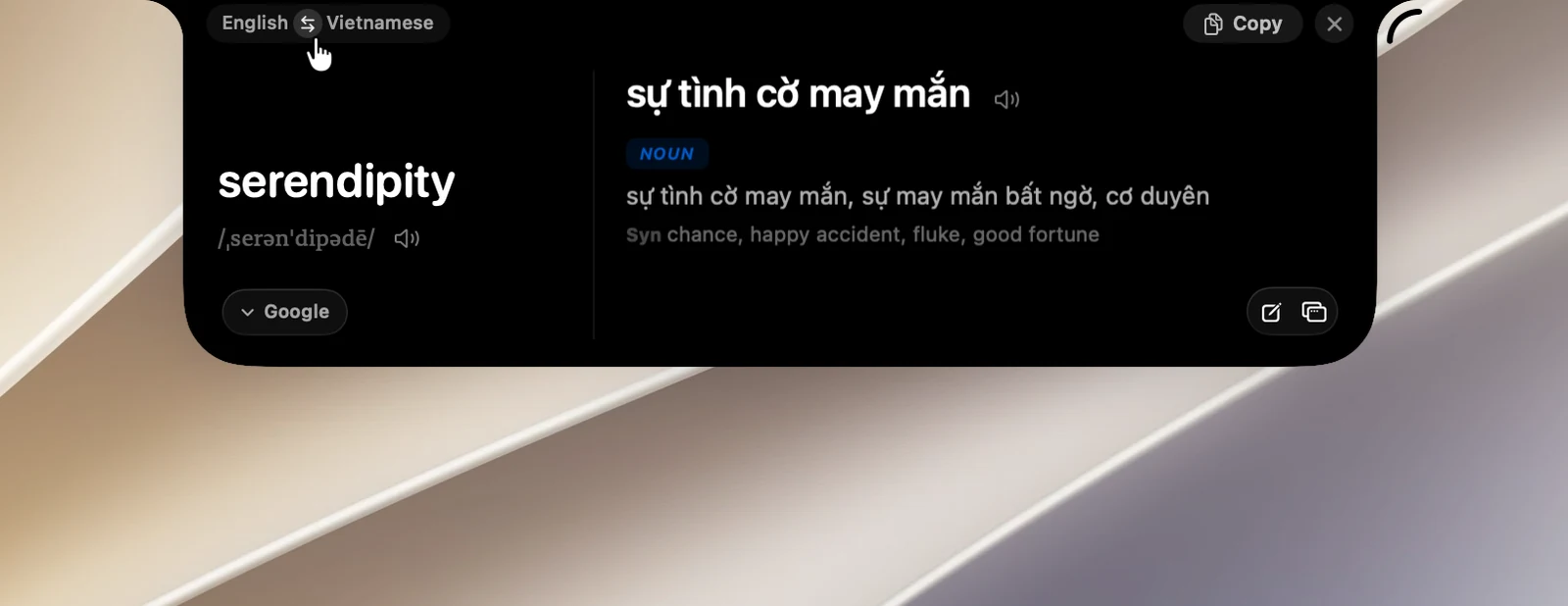
The ⇄ button is also on the divider between the two columns of the type-to-translate page, and at the bottom of the floating translation panel (as "VI ⇄ EN").
Good to know
- Translating back only applies to the result you're viewing; it doesn't change the translation direction for next time.
- In the notch, language names are shown in full; in the floating translation panel, only short codes like EN and VI are shown.