
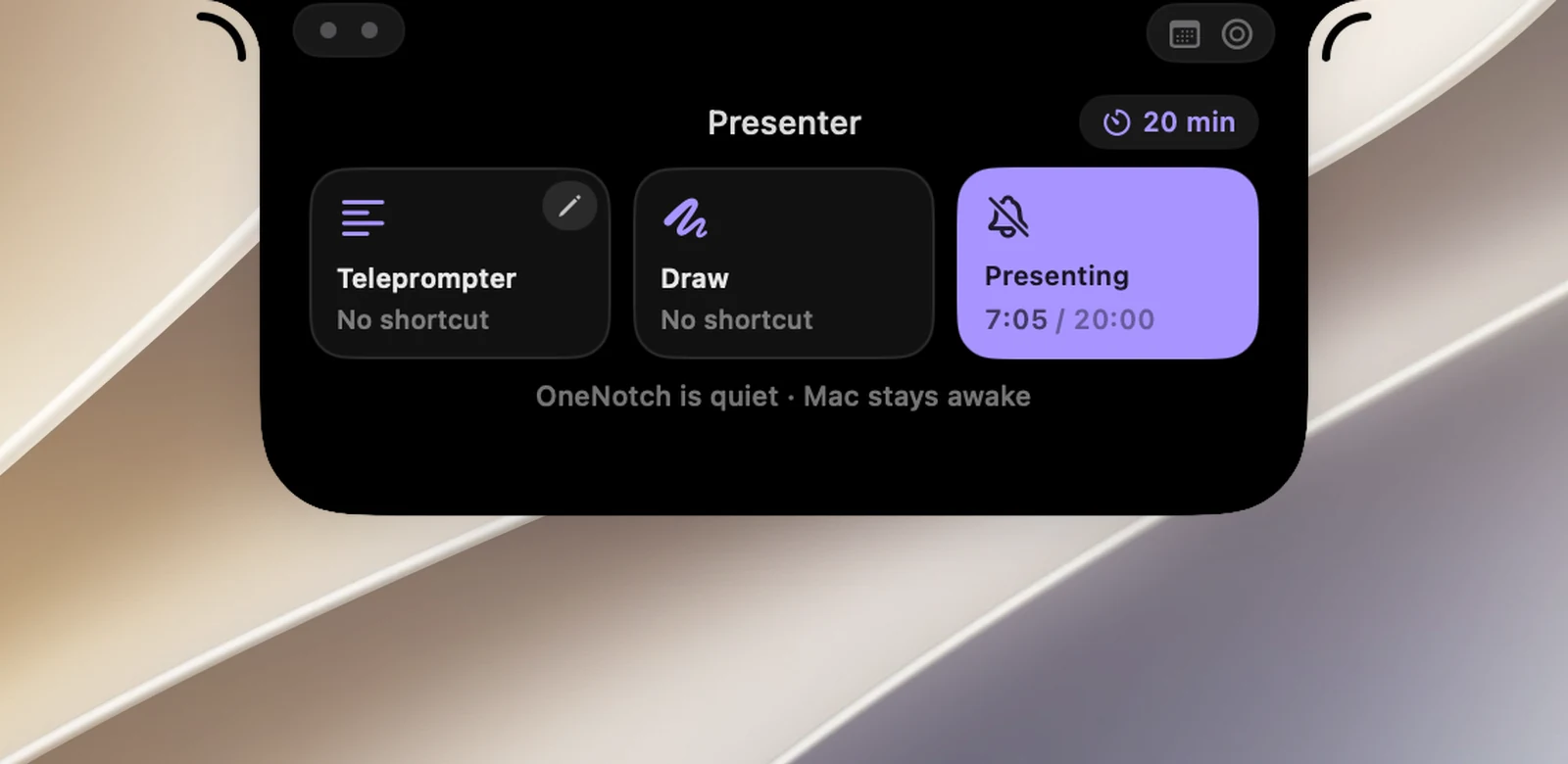
Presenting is the third tile on the Presenter page. Turn it on before you share your screen, give a talk or record a video: OneNotch stops interrupting you, your Mac stays awake, and a talk clock starts running.
Turn it on
- Open the Presenter page: click the Presenter button (a person with waves), which is in the notch's Right orb by default. To move the button somewhere else, go to Settings › Interface › Notch layout.
- Click the Presenting tile. The tile lights up in purple and shows the talk clock; the line below the tiles reads OneNotch is quiet · Mac stays awake.
- Click the tile again to turn it off when you're done.
Starting the Teleprompter also turns on Presenting. When you stop the teleprompter, Presenting stays on, so you're still covered during Q&A.
What changes while you're presenting
OneNotch is quiet. Nothing that could pop up in the middle of your talk:
- The "Copied" alert, the copy sound and the ✓ that flashes on the menu bar icon.
- The small notices below the notch: a new song, AI agents, Keep Awake, Eye Break nudges, finished downloads.
- An Eye Break that comes due waits until you turn off Presenting.
Your Mac stays awake. If Keep Awake isn't running, OneNotch starts an Until turned off session and ends that same session when you stop presenting. This session doesn't show the coffee cup on the notch. If you had already turned on Keep Awake yourself, your session is left as it is.
The notch tries to stay out of your screen share. As with the teleprompter, this works best when you share a single window; when you share your entire screen, or record with QuickTime or OBS, the notch may still show.
The talk clock
While you're presenting, the talk clock appears in three places: on the Presenting tile, in the teleprompter card's header, and on the closed notch (when music or an AI agent isn't using that spot).
- With no talk length set: the clock counts up, showing how long you've been talking.
- With a talk length set: the clock counts down the time left. It turns amber with 2 minutes left and red when you run over. On the closed notch, overtime shows as +2:15.

Set a talk length
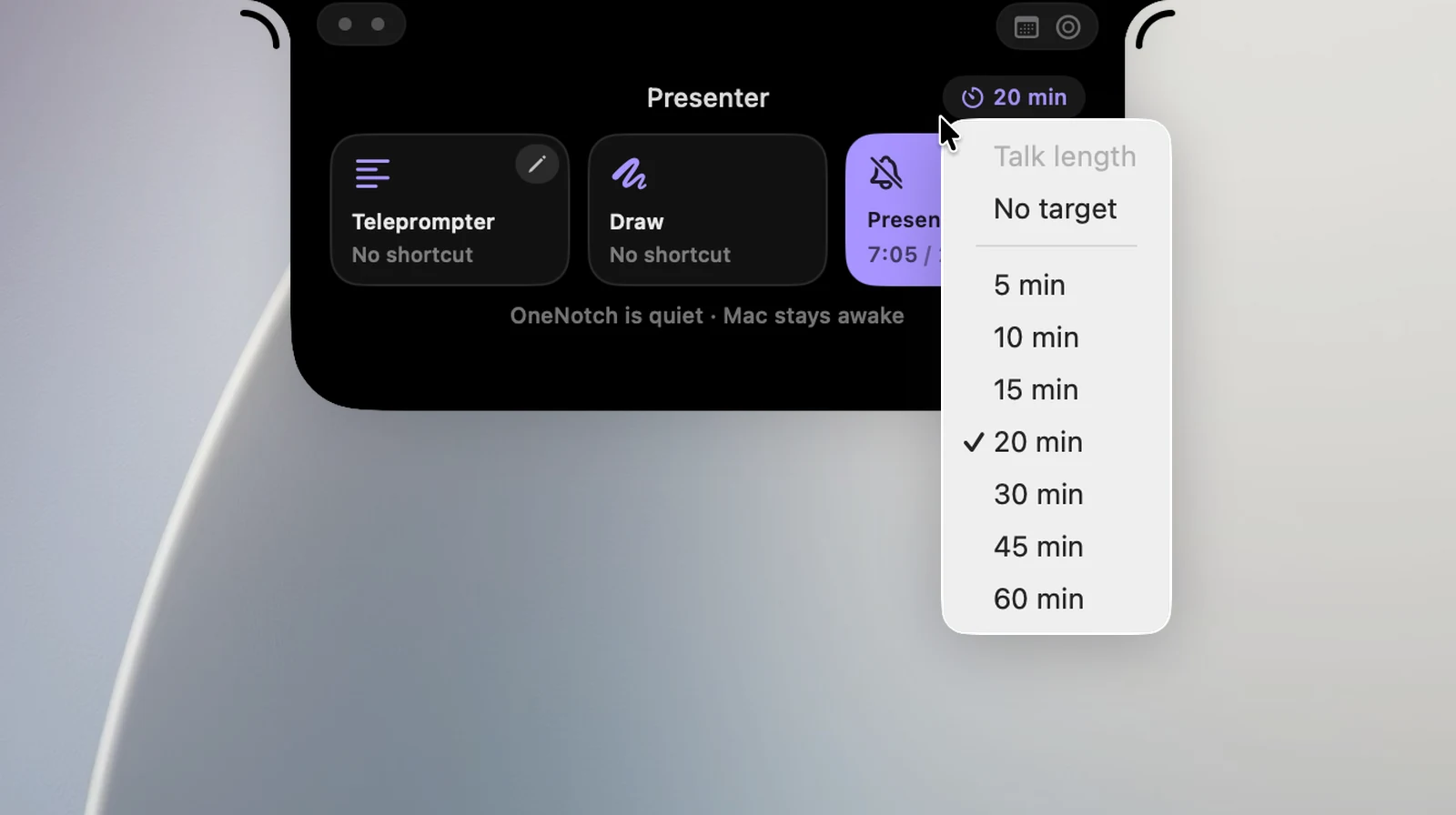
- On the Presenter page, click the ⏱ Talk length chip next to the title.
- Choose 5, 10, 15, 20, 30, 45 or 60 minutes, or No target.
The chip shows the length you chose, for example 20 min.
Pace against your script
When a talk length is set and the teleprompter is running, the teleprompter card's header shows where you are in your script compared with the time you've spoken:
- On pace: within 20 seconds of plan.
- … ahead: you're reading faster than planned, for example 1:10 ahead.
- … behind: you're slower than planned. At 1 minute or more behind, the text turns amber.
A narrow card shows a shorter version, for example +1:50.
Priority on the closed notch
The closed notch shows only one tool indicator. A locked keyboard (Cleaning Mode) comes first, then a muted microphone, then the talk clock, and finally the Keep Awake coffee cup.
Presenting doesn't need any permissions and doesn't have its own section in Settings.