
OneNotch works on MacBooks with a notch, MacBooks without a notch and external displays.
Choose a display
In Settings › General › App & Displays:
- Show on all displays (off by default): each display gets its own notch.
- Display: the display that shows the notch when you use only one notch.
- Automatically switch displays (on by default): when the preferred display is disconnected, the notch moves to the remaining display, and moves back when you reconnect it.
Notch or Pill on displays without a notch
Go to Settings › Interface › Window Size. Each connected display has a card:
- A MacBook display with a real notch says Built-in notch, with nothing to choose: the notch always follows the display's cutout.
- Other displays have two buttons: Notch (draws a virtual notch in the middle of the top edge) and Pill (a long rounded capsule floating just below the top edge). The thumbnail on the card changes right away. Your choice also becomes the default for displays you connect later.
- With more than 4 displays, only the first 4 cards appear; the other displays use the style you chose most recently.
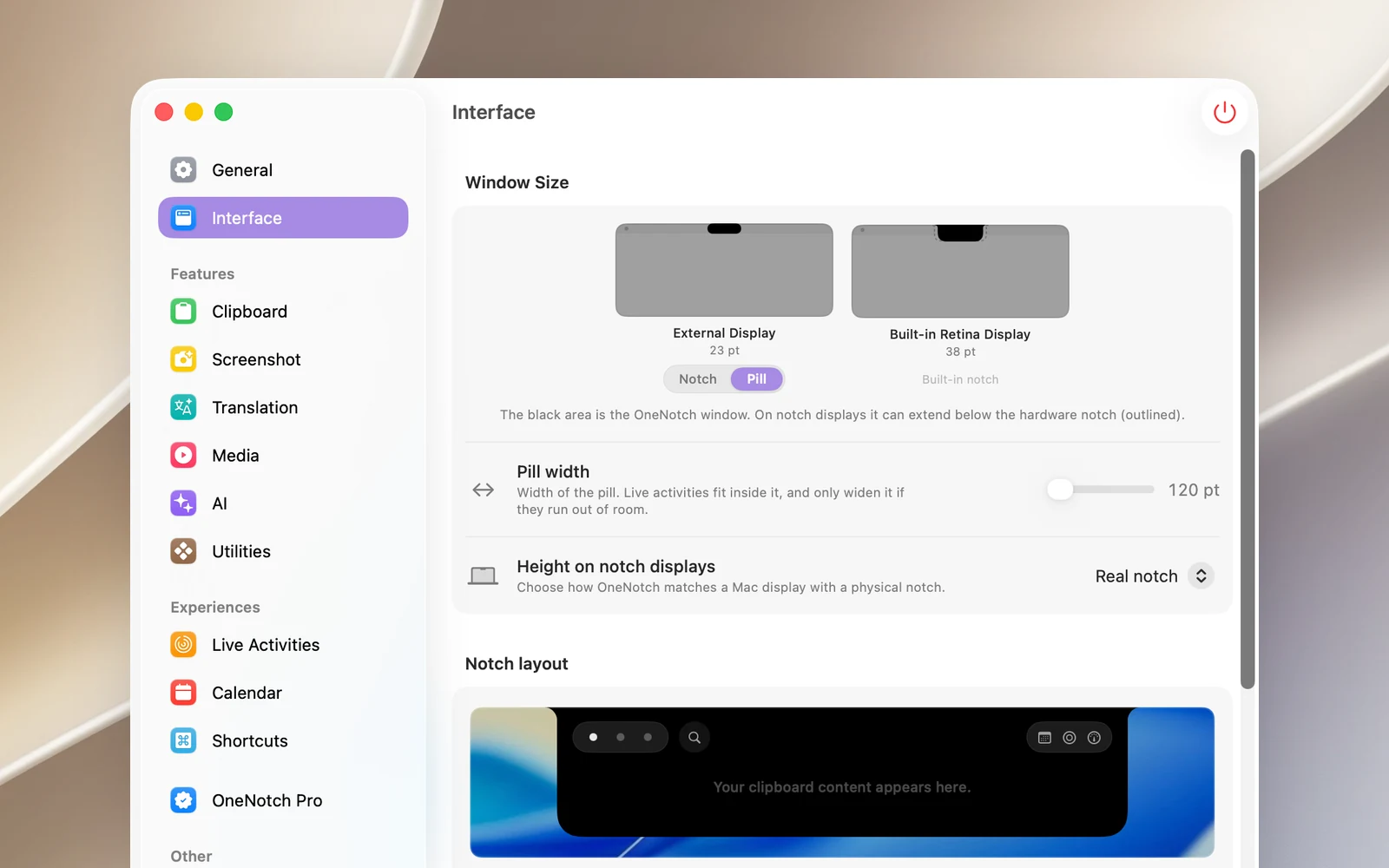
When a display is using Pill, a Pill width row appears just below the cards so you can adjust the width (120 to 320 pt).
The first time you open OneNotch on a Mac without a notch, first-time setup asks you to choose Notch or Pill.
Notch height
- Height on notch displays: Real notch (default), Menu bar or Custom.
- Height without notch (appears only when a display without a notch is using the Notch style): Menu bar (default), Real notch or Custom.