
Cleaning Mode locks the keyboard so you can wipe it without typing gibberish into the app that's open. The mouse and trackpad keep working as usual. The media, volume, brightness and keyboard backlight keys are locked too.
Open it
The Cleaning Mode button (a keyboard icon) isn't in the notch by default. Go to Settings › Interface › Notch layout and drag Cleaning Mode from the Not in use tray onto an orb or the toolbar (see "Customize the notch layout"). Then open the notch and click that button.
Lock and clean
- Click the large round Lock the keyboard to clean it button on the page. The notch shows Keyboard locked · Esc ×5 to unlock.
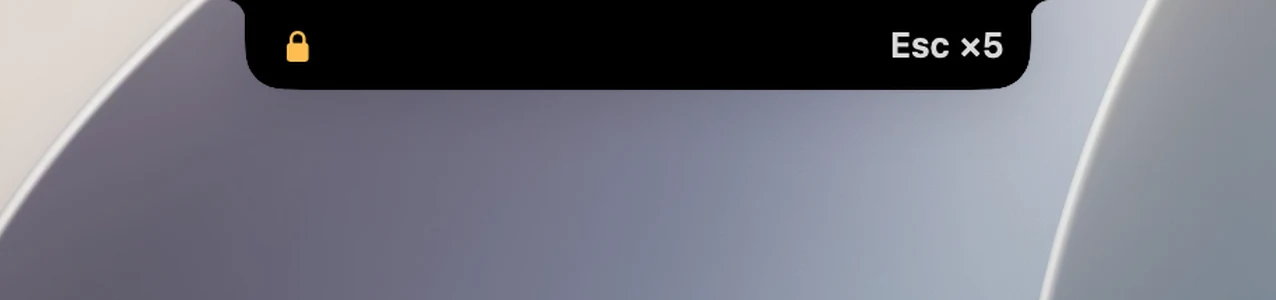
- Wipe the keyboard as much as you like. The closed notch shows a lock and Esc ×5 so you remember how to unlock it.
- Unlock it in one of the ways below.
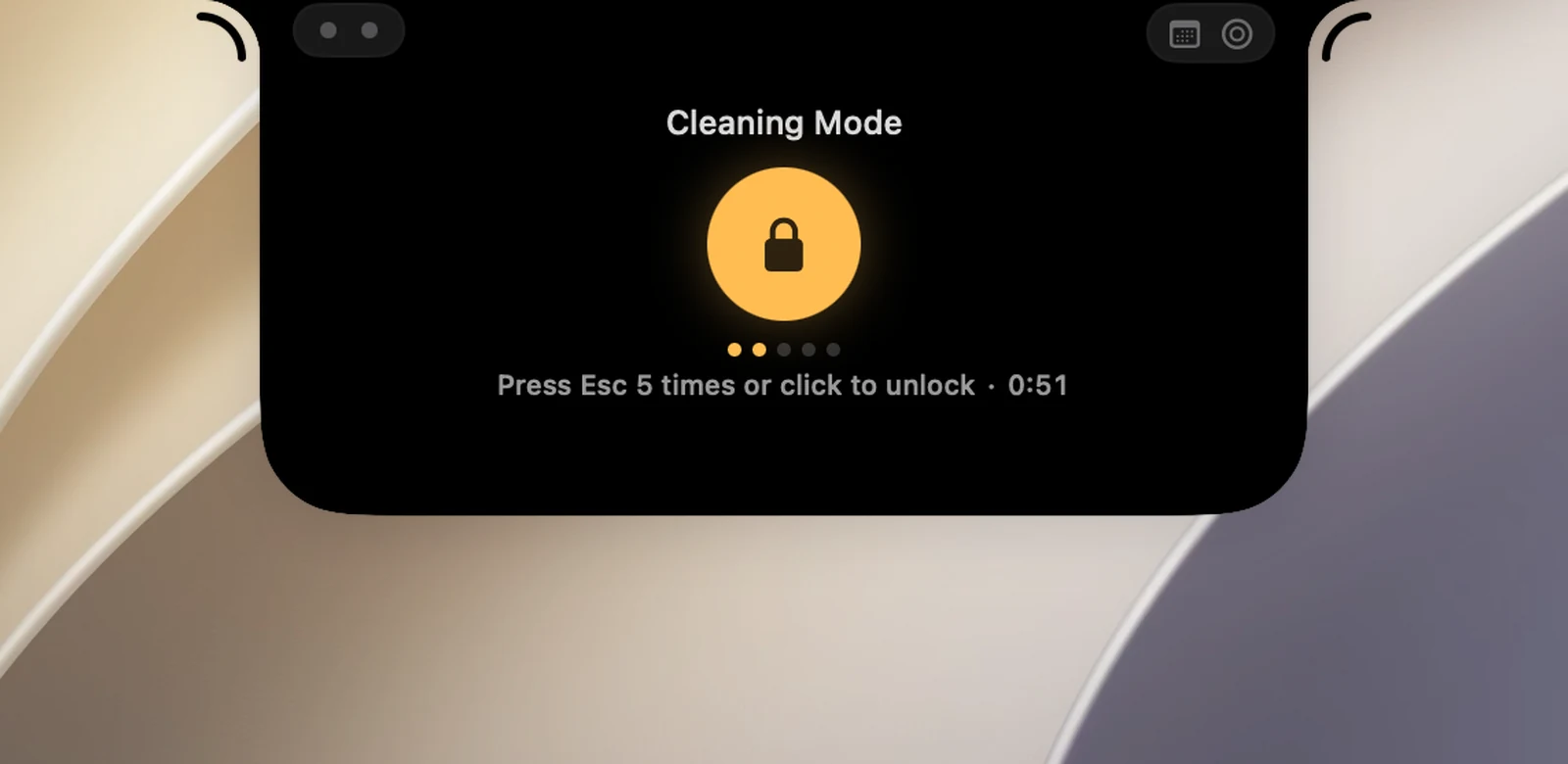
Unlock
- Press Esc 5 times in a row, no more than 6 seconds apart. Pressing any other key starts the count over. The five dots on the page show how many times you've pressed it.
- Click the round button on the page again (Unlock the keyboard). While the keyboard is locked, opening the notch takes you straight to this page.
- Wait: the keyboard unlocks on its own after at least 1 minute. If you're still cleaning (keys are still being pressed), it waits until 30 seconds after the last press, but never more than 5 minutes after locking. The notch then shows Keyboard unlocked · time's up.
Touch ID and the power button keep working while the keyboard is locked.
When the mode stops on its own
So you never get stuck, OneNotch unlocks the keyboard on its own and tells you why when:
- A password field is active. macOS doesn't allow locking the keyboard then; the page shows A password field is active, probably in …. Click somewhere else, then try again.
- OneNotch loses Accessibility permission partway through.
- The keyboard couldn't be locked for another reason (The keyboard couldn't be locked. Try again.).
If Caps Lock changes while you're cleaning, the page shows Caps Lock changed while you were cleaning so you can check it before you type.
Permission needed
Cleaning Mode requires Accessibility permission. Without it, the page shows OneNotch needs Accessibility to lock the keyboard with an Open Settings button. See "Grant permissions to OneNotch".
Cleaning Mode has no keyboard shortcut and no section of its own in Settings.