
However long your history gets, you can find things again in a few seconds.
Search by content
Open the Clipboard page in the notch or the Clipboard Panel and start typing. Results are filtered as you type, ignoring case and accents. The search matches a clip's content, the source app's name, the content type and the name you gave the clip. If Find Text in Images is on, text in images is searched too.
Press Return to use the first result.
Filter with @
Type @ and a content type, then press Space to turn it into a filter:
@text: text@link: links@image: images (also accepts@screenshotand@photo)@color: color codes@file: files and folders@video: videos
Type @ and an app name to filter by source app, for example @chrome or @slack. You can combine several filters and add search terms after them.
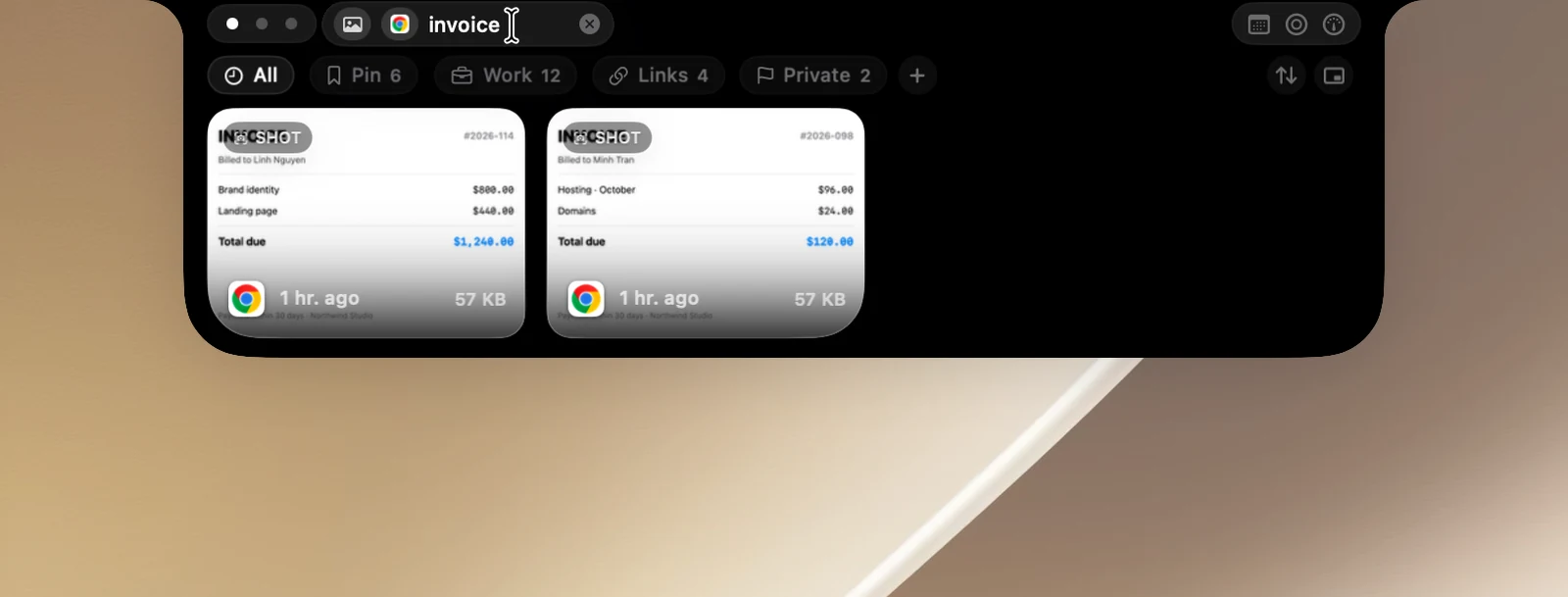
In the Clipboard Panel, typing @ shows a list of suggestions: use ↑ ↓ to choose and Tab to complete. Click a filter, or press ⌫ when the field is empty, to remove it.
Sort
Click the sort button next to the row of boards and choose: Newest First (default), Oldest First, By Type, By App, Content (A–Z) or Named First. The notch and the Clipboard Panel share this order. The button is highlighted when you're using an order other than the default.
Go back to the original clip
While searching or viewing a board, right-click a clip › Show in History to clear the search and scroll to that clip in your history.