
Drag a window from any app onto the notch, and the notch opens a row of layouts. Drop the window on a zone in a layout, and the window moves to that exact position and size.
Turn it on
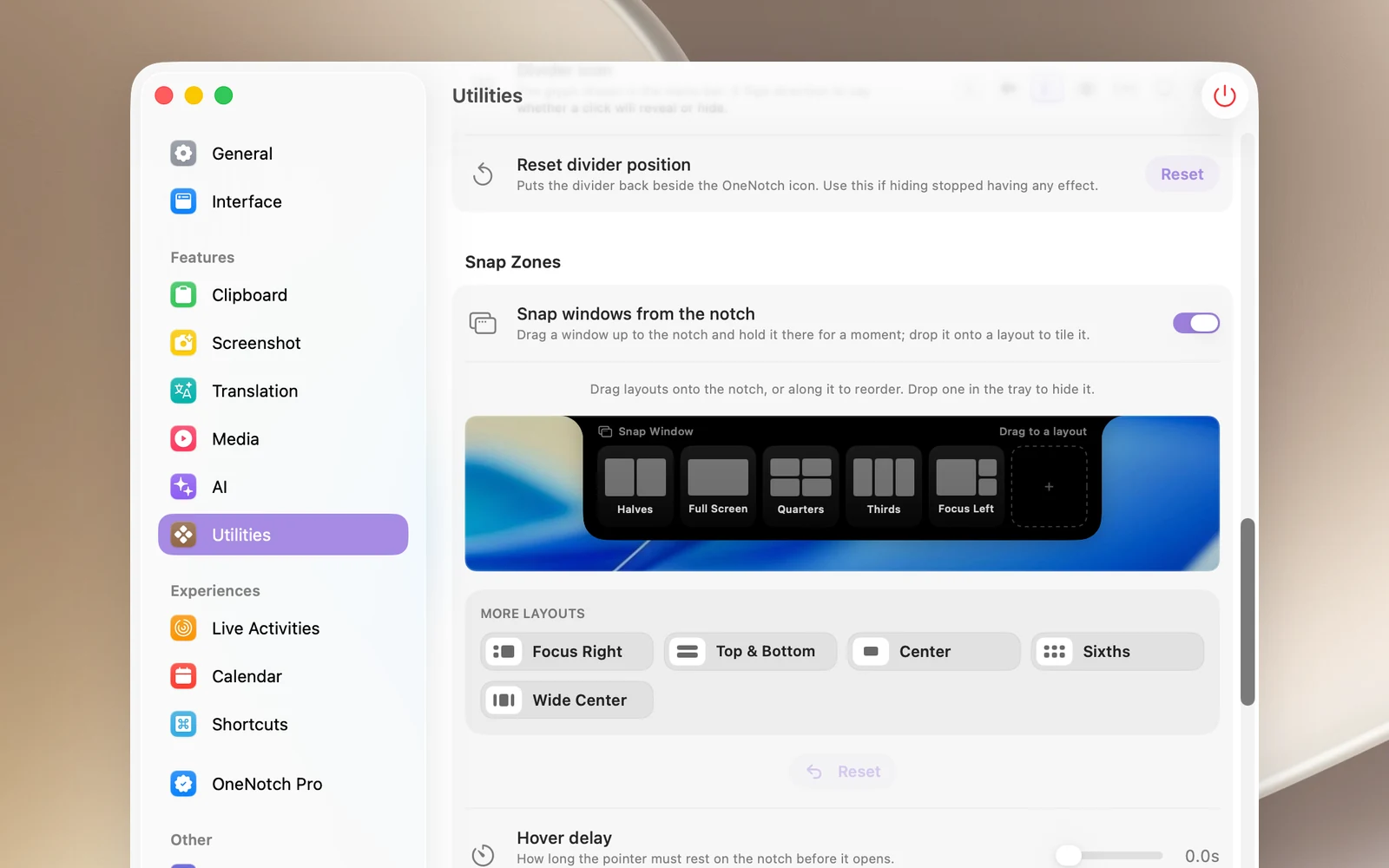
- Go to Settings › Utilities › Snap Zones and turn on Snap windows from the notch.
- Grant Accessibility permission when asked (the Accessibility permission needed row has an Open button).
Snap a window
- Drag the window's title bar up toward the notch. The notch opens the row of layouts.
- Drag down onto a zone in a layout. A translucent frame shows where the window will go.
- Release the mouse button.
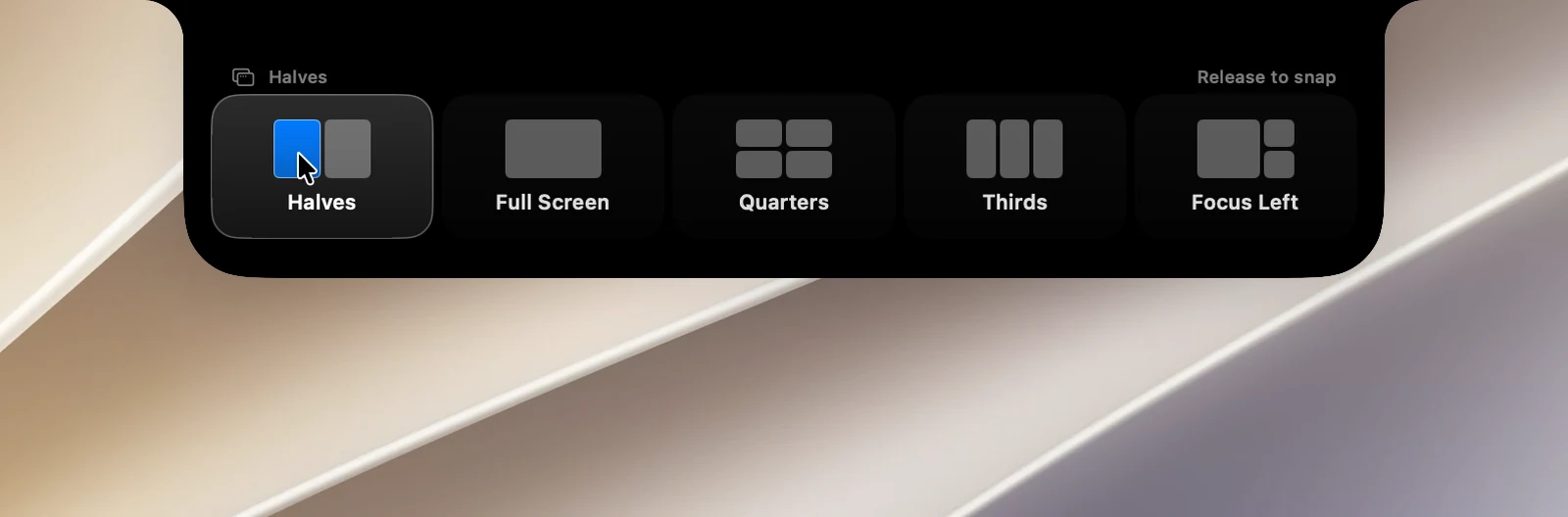
To cancel, release the mouse button outside the layouts or drag away from the notch.
Layouts
Halves, Full Screen, Quarters, Thirds, Focus Left, Focus Right, Top & Bottom, Center, Sixths, Wide Center. Windows are arranged within the screen area excluding the menu bar and the Dock, on the display that holds most of the window.
Choose the layouts shown on the notch
In Settings › Utilities › Snap Zones, the layout row editor lets you:
- Drag a layout from the More Layouts tray onto the notch to add it (up to 6).
- Drag along the notch to reorder layouts.
- Drag a layout down to the tray to hide it.
- Click Reset to go back to the default row.
Notes
- Only regular windows can be snapped; dialogs and sheets can't.
- If you turned on the feature before granting Accessibility permission and dragging windows does nothing, turn Snap windows from the notch off and on again, or restart OneNotch.
- Windows of apps that don't allow resizing won't change.