
You don't need to select anything: open the Translation page in the notch, type or paste text into the left column, and the translation appears in the right column once you pause typing.
Open the Translation page
Choose one of these:
- Press ⇧⌘G when no text is selected.
- Open the notch and click the Translate icon on the toolbar. Click it again to close.
- While viewing a translation result, click New translation.
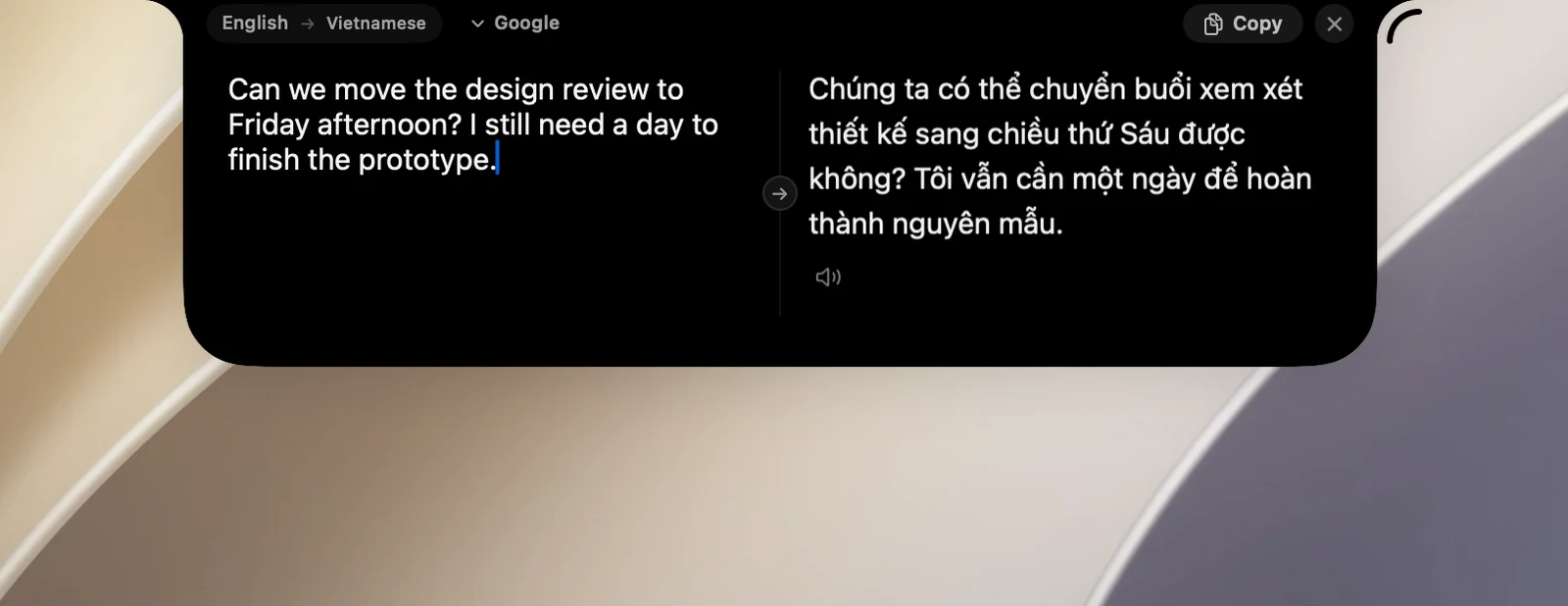
Type and translate
- Type in the Type to translate… field.
- Pause for a moment, and the translation appears in the right column.
- Click Copy to copy the translation.
The chip at the top of the page shows Auto until OneNotch recognizes the language, then changes to the source → target language pair. If you type a single word, you get a dictionary-style result. For Chinese, Japanese, Korean and similar languages, the romanization appears right below the field.
Shortcuts on the Translation page
- ⌘↩: translate right away, without waiting.
- ↩: start a new line.
- Esc: close the page.
Tips
- Click the ⇄ button on the divider between the two columns to translate the translation back into the original language.
- This page doesn't need the Accessibility permission.
- The Translate icon on the toolbar only appears when Enable Translation is on in Settings › Translation. You can hide it or move it in Settings › Interface › Notch layout.