
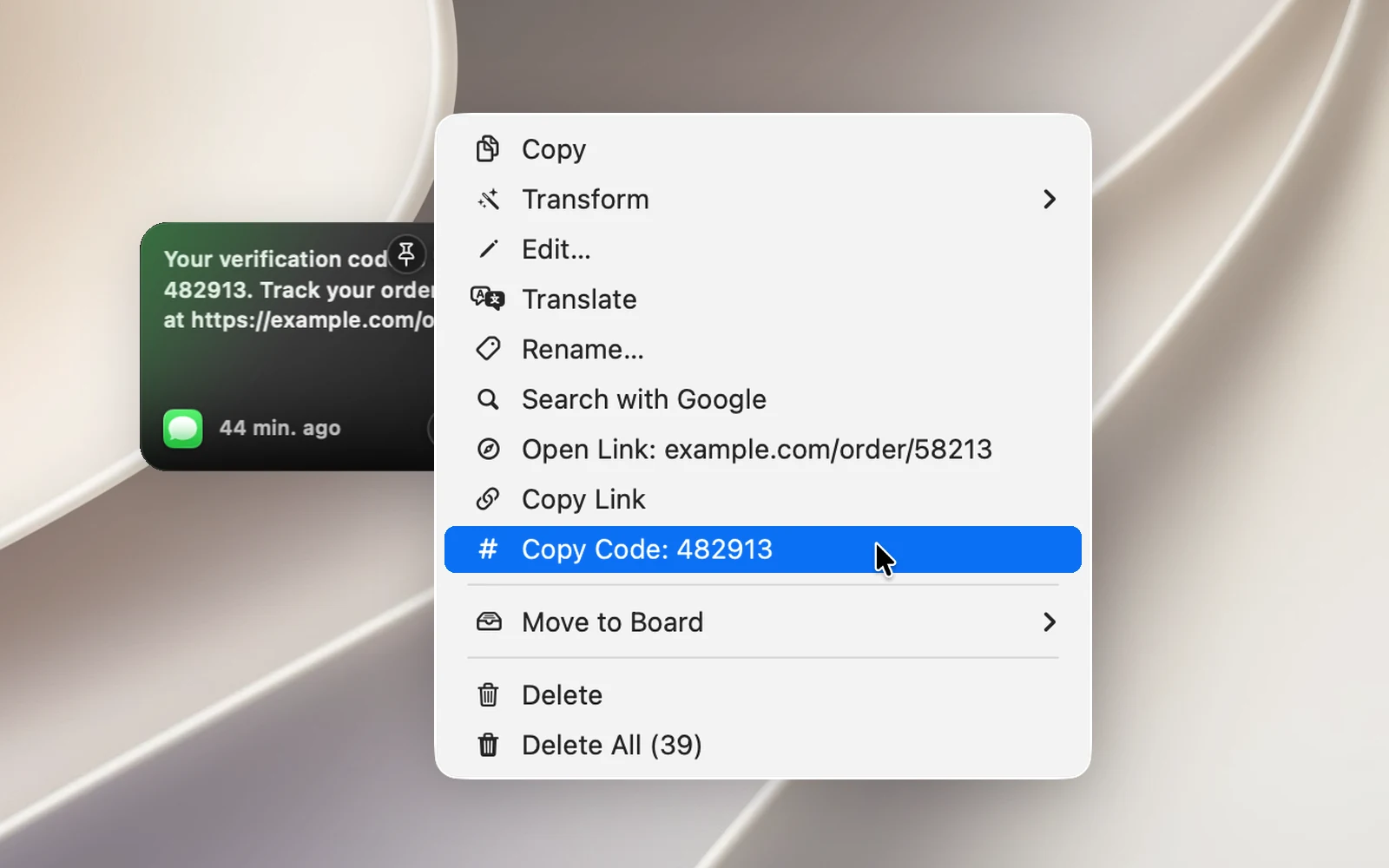
Right-click a clip in the notch or in the Clipboard Panel to open its actions menu. The menu shows only the commands that fit that clip's type of content.
For text
- Copy and Copy as Plain Text (removes formatting, for rich text, links and colors).
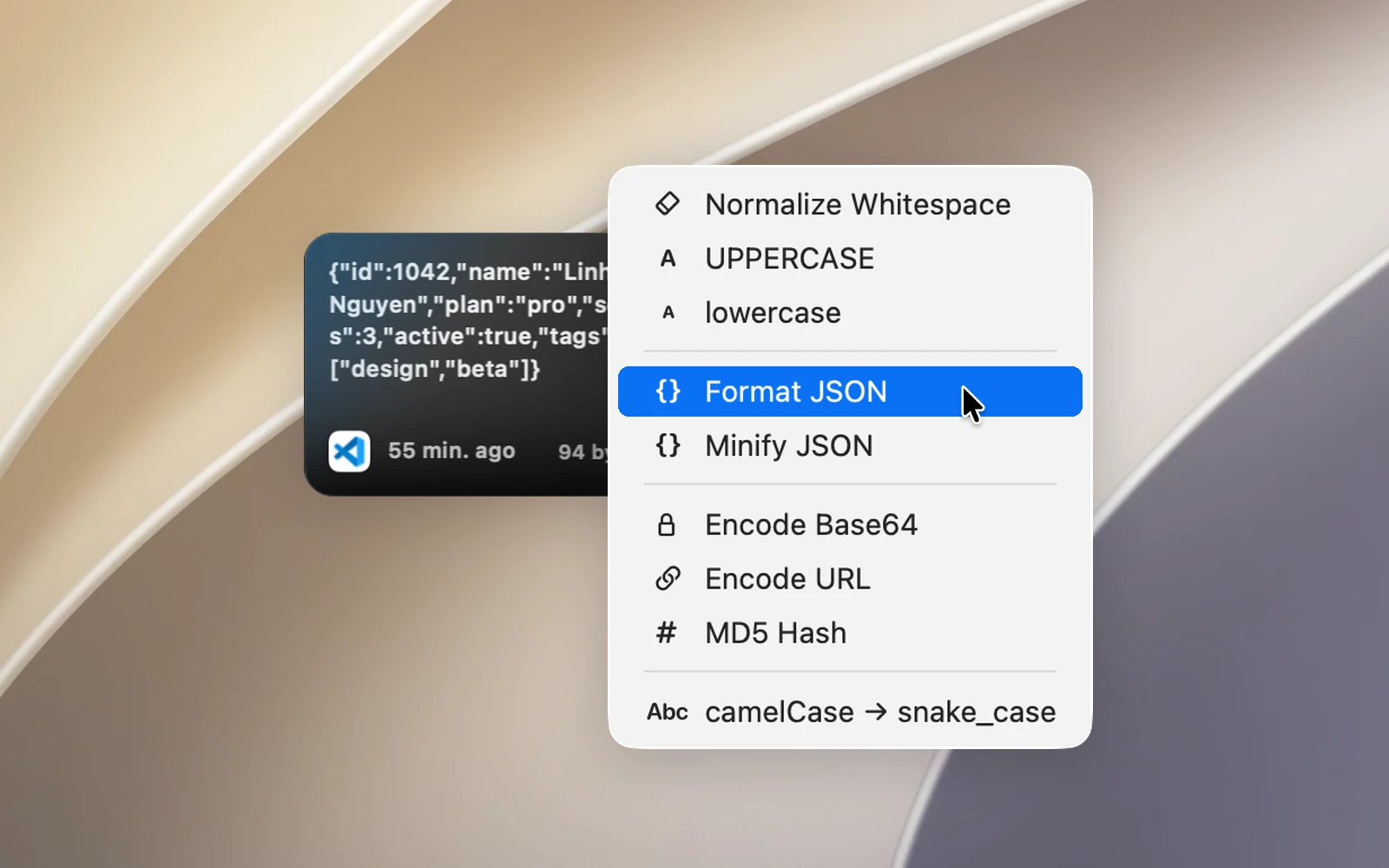
- Transform: transforms the text and copies the result, without creating a new item in your history. Options include normalizing whitespace, UPPERCASE, lowercase, formatting or minifying JSON, Base64 or URL encoding and decoding, MD5, converting camelCase ↔ snake_case, converting a timestamp to a date, sorting lines and removing duplicate lines.
- Edit…: opens the clip in an editing window. See "The Edit window" below.
- Translate: opens the translation in the floating translation panel.
- Search with Google.
- Open Link and Copy Link when the text contains a link; Copy Code when the text contains a one-time or verification code. The code is copied without creating a new item in your history.
- Go to Source and Copy Link to Highlight for text copied from a browser: open the original page again, or get a link that points straight to that passage.
The Edit window
Right-click a text clip and choose Edit… to edit its text in a separate window. The window's toolbar has:
- Text Style: the editor's font and text size.
- Clean Up: a menu that transforms the whole text right in the window: Trim Whitespace, Remove Empty Lines, Join Into One Line, Sort Lines A→Z, Remove Duplicate Lines (keeps the first occurrence of each line and leaves empty lines alone), Remove Markdown Symbols, Remove Tracking from Links (removes parameters like
utm_…,fbclidandgclidfrom links), Remove Accents, UPPERCASE, lowercase and Capitalize Words. - Revert: goes back to the original text.
- Save (⌘↩): saves your changes to the clip. The button turns blue once you've changed something.
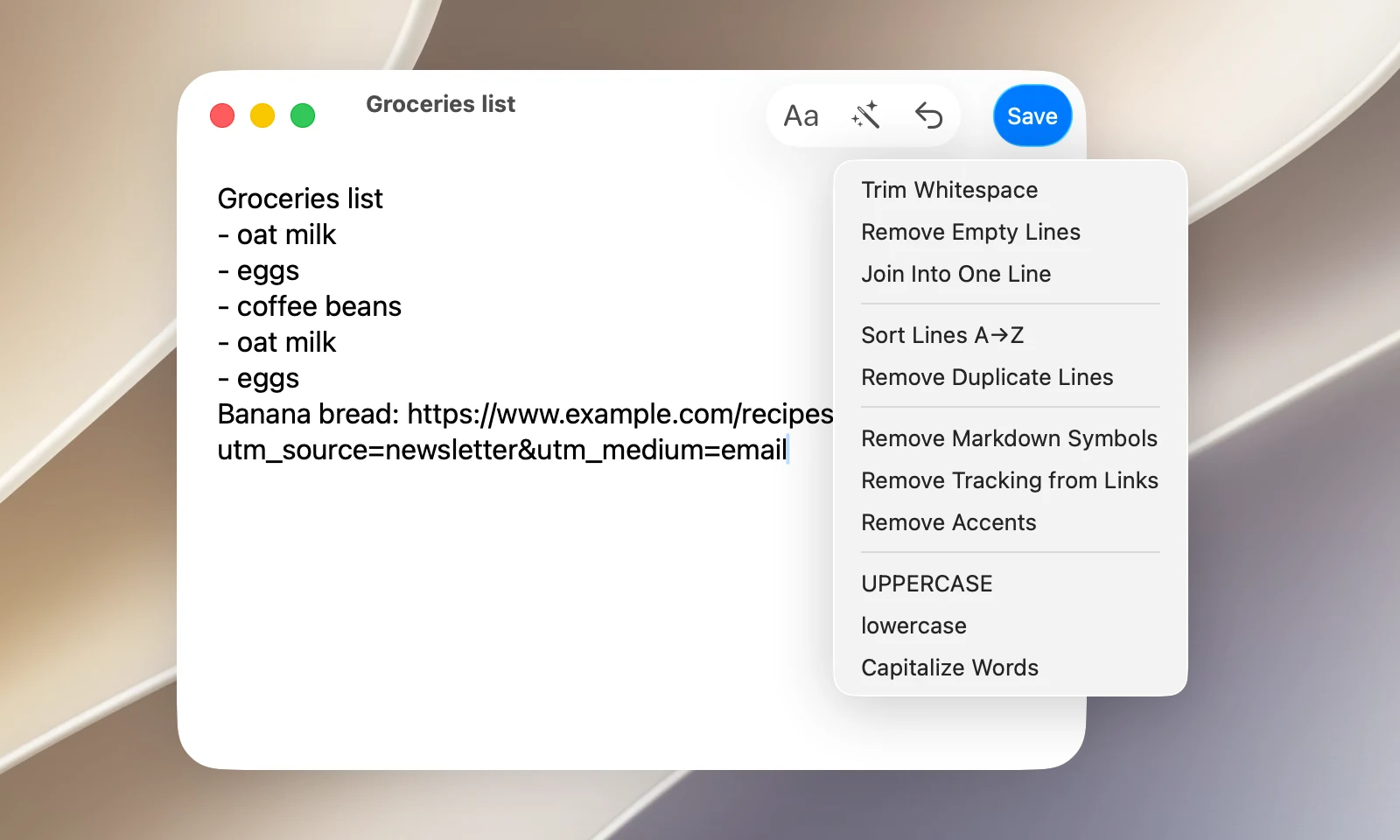
Press Esc or close the window to discard your changes without saving. Remove Markdown Symbols, Remove Tracking from Links and Remove Accents are only in the Edit window, not in the Transform menu.
For links
Open in Browser, Copy Link, Copy as Plain Text.
For images
- Annotate: opens the image in the screenshot annotation editor.
- Resize: gets a smaller copy (half size, or 1920, 1280 or 640 px on the long side).
- Convert to: gets a PNG, JPG, WebP or HEIC copy.
- Copy Text from Image and Translate Text in Image.
Resize and Convert to put a copy on your clipboard; the original image in your history stays the same.
For files
Quick Look and Reveal in Finder.
For every clip
- Rename…: see "Rename clips".
- Move to Board: see "Pin clips to boards".
- Delete: removes it from your history (when you're viewing a board, it only unpins it).
- Delete All: deletes your whole history in one click, without asking again. Items pinned to boards are kept. This command is turned off while you're searching.