
While an agent is running, you can look inside without switching to the terminal.
Open the preview
- Hover over the agent's side of the closed notch (Open on hover must be on), or
- Click the agent on the closed notch.
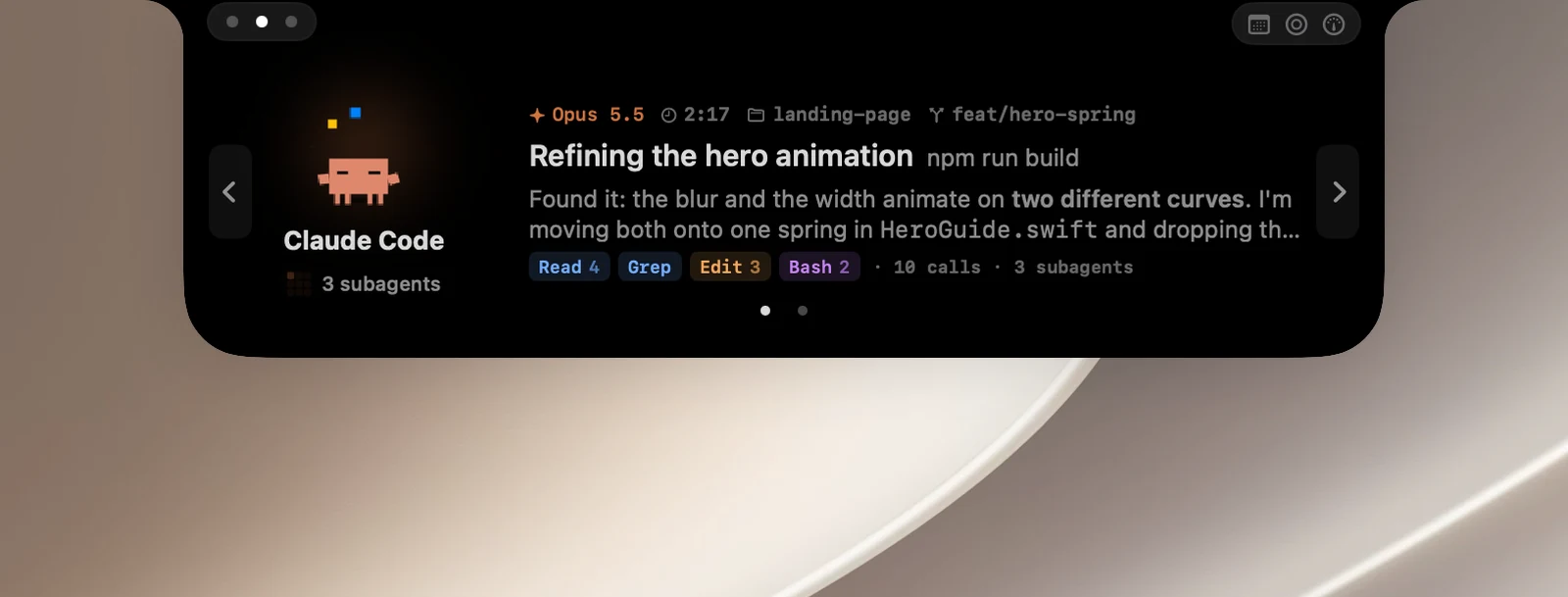
The notch opens the AI page as a preview, showing:
- The agent's animal, its name and its status: Thinking, Working, Compacting, Waiting for you, Done…
- The model, the time of the current turn, the working folder and the git branch.
- The current task and step, the latest reply, and chips for the tools it has used (for example how many times it ran Read or Bash, and how many subagents).
What you can do in the preview
- Click anywhere to switch to the terminal or app where that agent is running.
- If several agents are running, use the ‹ › buttons or the page dots to switch between them.
- If the agent is waiting for you, the notch opens the permission card instead of the preview.
Go to the right terminal
OneNotch takes you to the exact terminal tab or pane in tmux, iTerm, Terminal and WezTerm. In VS Code and Windsurf, OneNotch reopens the working folder. For other apps such as Warp, Ghostty or Cursor, OneNotch brings the app to the front.
The first time OneNotch jumps to a specific tab in iTerm or Terminal, macOS asks whether OneNotch can control that app. If you decline, OneNotch still brings the app to the front, but it can't select the right tab.