
Spotted an appointment in an email or a message? Select the date and time, click the button beside the selection, then click Add to Calendar.
Use it
- Turn on Dates → Calendar in Settings › Utilities › Smart Select (Recognize more than text must be on).
- Select a date and time, for example
Friday 3pm,Team sync 24/12 15horDesign review Saturday, October 24 at 3pm. - The button beside the selection shows a calendar icon. Click it.
- Check the date and time on the card, then click Add to Calendar. The button changes to Added.
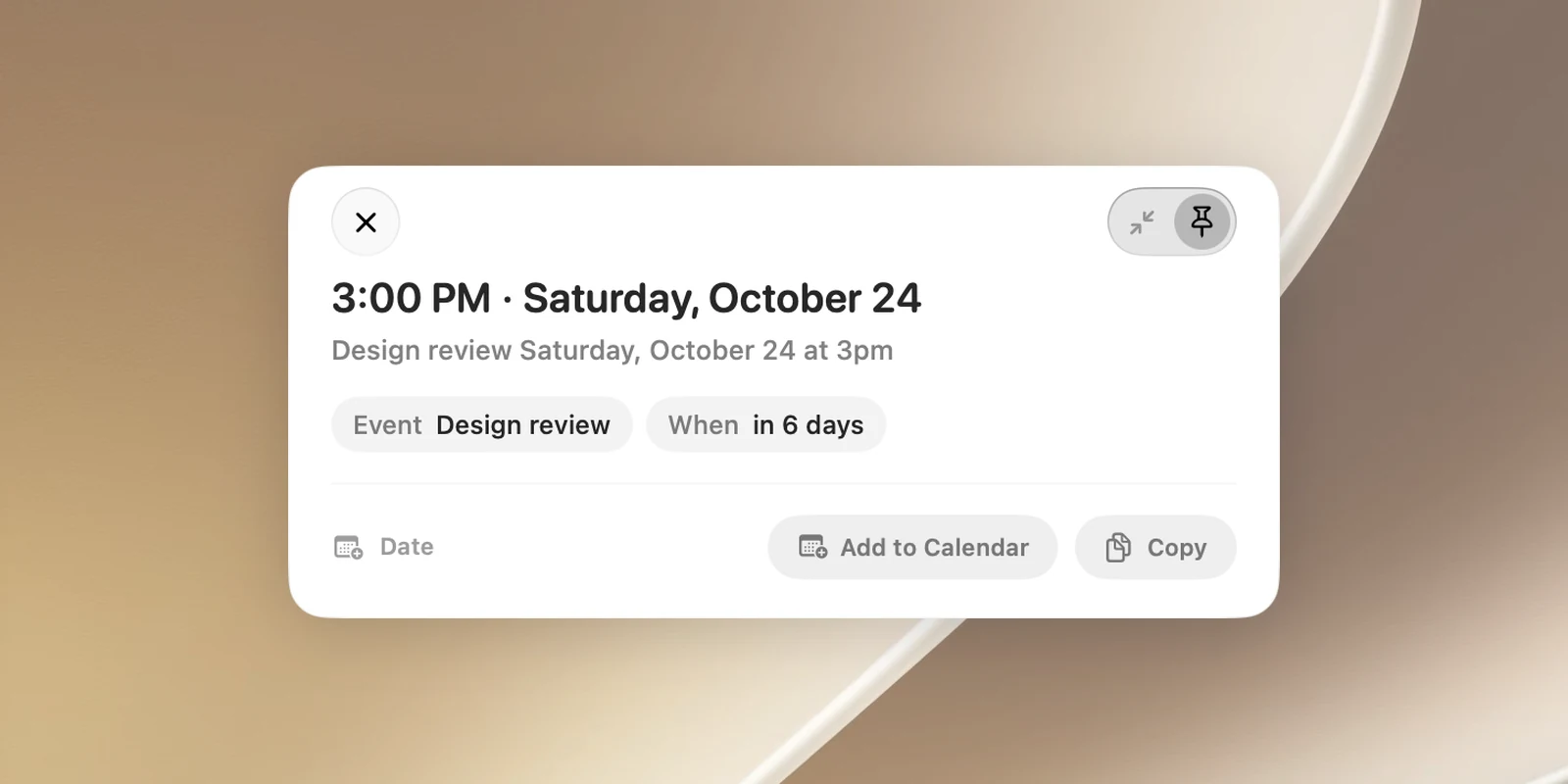
The words that come with the date (like "Design review") become the event name; if there aren't any, the event is called New Event. A date without a time becomes an all-day event. The card also shows how long until that date (for example "in 6 days"), so you can see right away if OneNotch read the date wrong.
Dates in a sentence
If you select a whole sentence that contains a date and time, OneNotch translates the sentence and turns the date and time into chips right below the translation. Click a date chip to add an event named after the sentence; click a time chip with a time zone to copy the converted time.
A date word on its own, like "tomorrow" or "Friday", is translated, not turned into an event.
Date formats
Numeric dates are read day first, then month: 26/9 is September 26. Without a year, you must use /.
A numeric date without a year is always taken as this year, even if that date has already passed: selecting 3/10 at the end of October gives you October 3 that just passed. To get next year, add the year, for example 3/10/2027. A weekday name like Friday 3pm is always the next one coming up.
Permission needed
The first time you add an event, macOS asks for access to your Calendar. If you declined, the button changes to Allow Calendar access and opens the macOS privacy settings.