
Need to move a name, an email address and a phone number from a page into separate fields of a form? Copy Stack collects your copies in a queue, then each time you press ⌘V it pastes the next item, in the order you copied them.
Collect with Copy Stack
- Quickly press ⌘ twice. A toast appears under the notch to show that Copy Stack is collecting.
- Copy each thing in turn with ⌘C. The toast shows the item you just copied and the total number of items.
- Switch to where you want to paste and press ⌘V. Each press pastes one item and removes it from the queue.

Copy Stack stops collecting when you double-press ⌘ again, click the toast, or after 10 seconds without activity. You can still paste the items you collected with ⌘V; a new regular copy clears whatever is left.
To use ⌥ instead of ⌘, change it in Settings › Shortcuts › Copy Stack shortcut.
Choose from your history
No need to plan ahead: if the items are already in your history, you can build the queue yourself.
- In the notch or the Clipboard Panel, hold ⌘ and click each item in the order you want to paste them. Hold ⇧ and click to select a whole range.
- Each item gets a number. Click the number to remove that item from the queue.
- Switch to where you want to paste and press ⌘V several times.
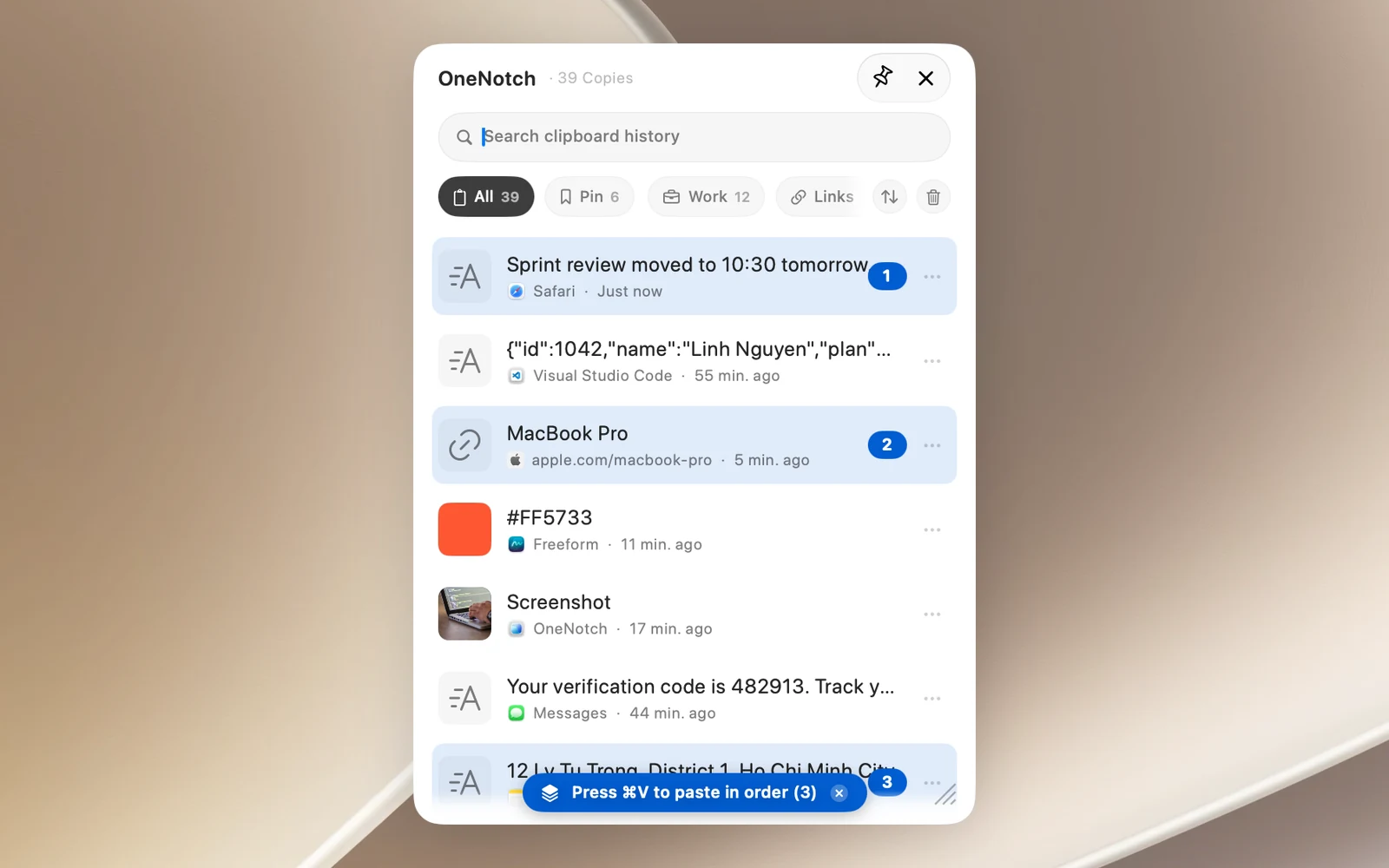
Click ✕ on the queue banner in the panel (or on the "⌘V N" capsule in the notch), or press Esc in the panel, to clear the queue.
Drag several items at once
When you've selected two or more items, dragging one of them drags the whole group in the order you selected:
- Drop it into another app (Notes, TextEdit, Mail…) to insert all of them. The queue is cleared afterward so nothing is pasted twice.
- Drop it on a board's name to pin all of them to that board.
Permission needed
Copy Stack needs the Accessibility permission to know when you press ⌘V. Without it, ⌘V just pastes the first item over and over.