
When music or a video is playing, open the notch and go to the Media controls page to see the full player.
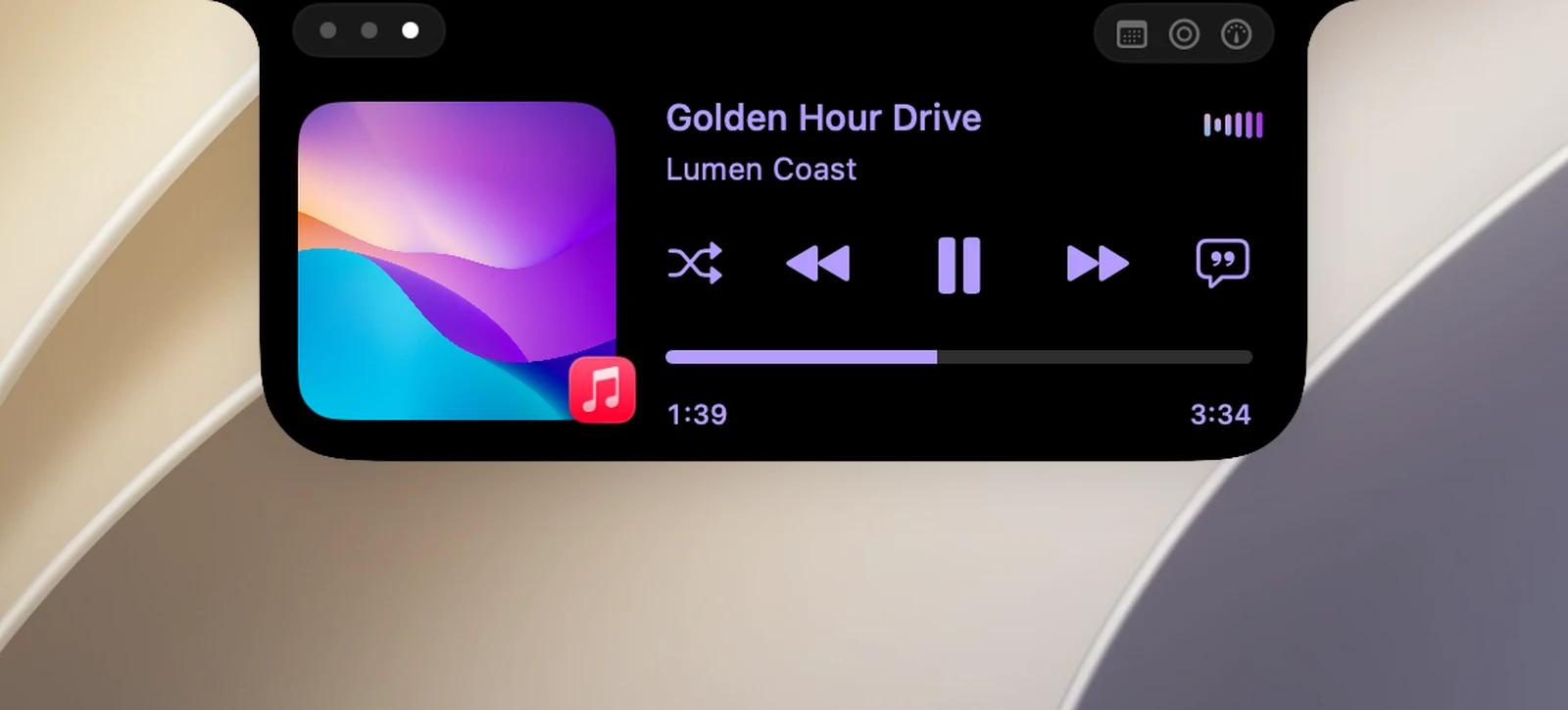
Controls
- Play/Pause is always in the middle of the row of buttons. By default, the buttons on either side are Shuffle, Previous, Next and Lyrics. You can change these buttons; see "Arrange the player buttons".
- Scrub: click or drag on the progress bar.
- Time: click the time on the right to switch between time remaining and total length.
- Open the source app: click the album art. For Safari, Chrome, Edge, Brave and Vivaldi, OneNotch opens the exact tab that's playing.
A dot under the Shuffle or Repeat button means that mode is on. The Repeat button cycles between off, repeat all and repeat one.
Control from other pages
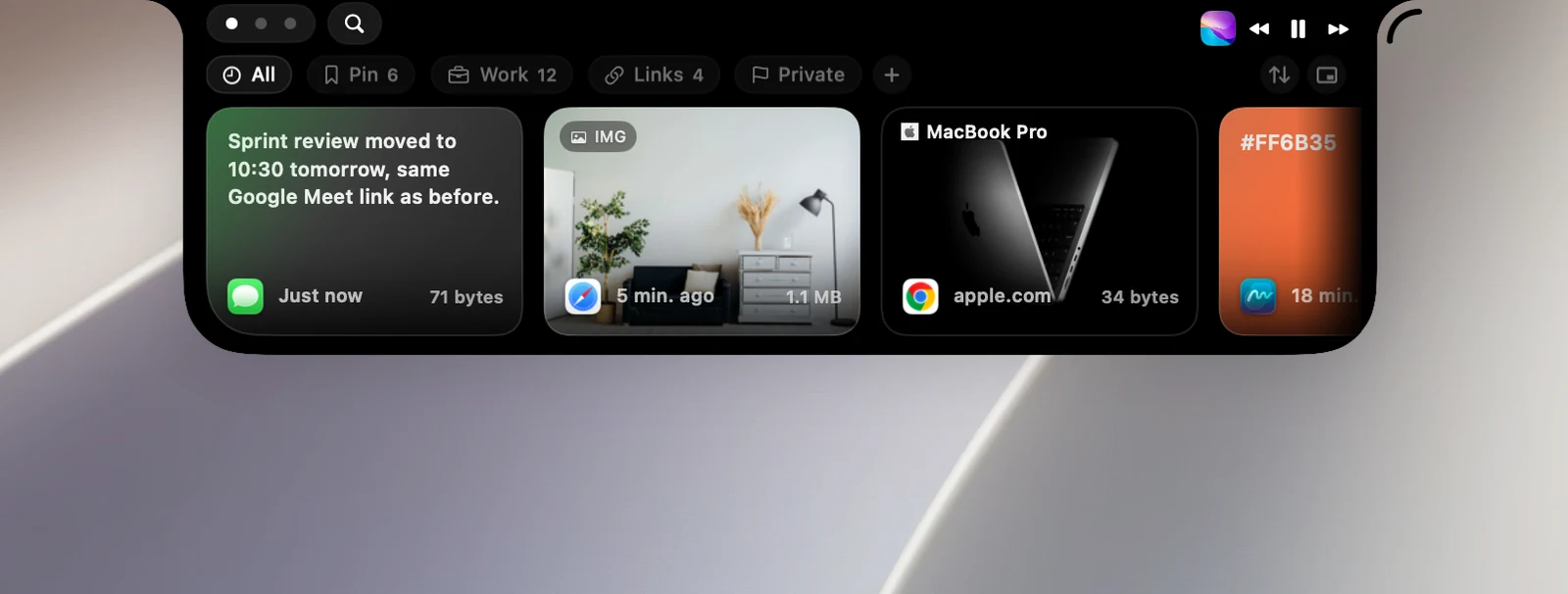
When you're on the Clipboard or AI page and music is still playing, the top right corner of the notch has a mini player: the album art (click it to go back to the music page), Previous, Play/Pause and Next.
Media keys
When OneNotch has Accessibility permission, the F7, F8 and F9 keys on your keyboard control the player shown in the notch. Buttons on wired headphones are still handled by macOS as usual.
Good to know
- The Favorite button only works with Apple Music and the YouTube Music desktop app.
- Shuffle and repeat don't apply to Chrome.
- The first time you control Music or Spotify, macOS may ask whether OneNotch can control that app. Choose to allow it.
- To turn off the music features completely, turn off Enable media detection in Settings › Media.