
Pick a color
- Press ⇧⌘1 or choose menu bar › Screenshot › Pick Color.
- Move the pointer. The magnifier follows it, and the pill below shows the color code of the pixel in the center.
- Click (or press C) to copy the color code. A small alert on the notch confirms the color was copied, and the color also goes into your clipboard history.
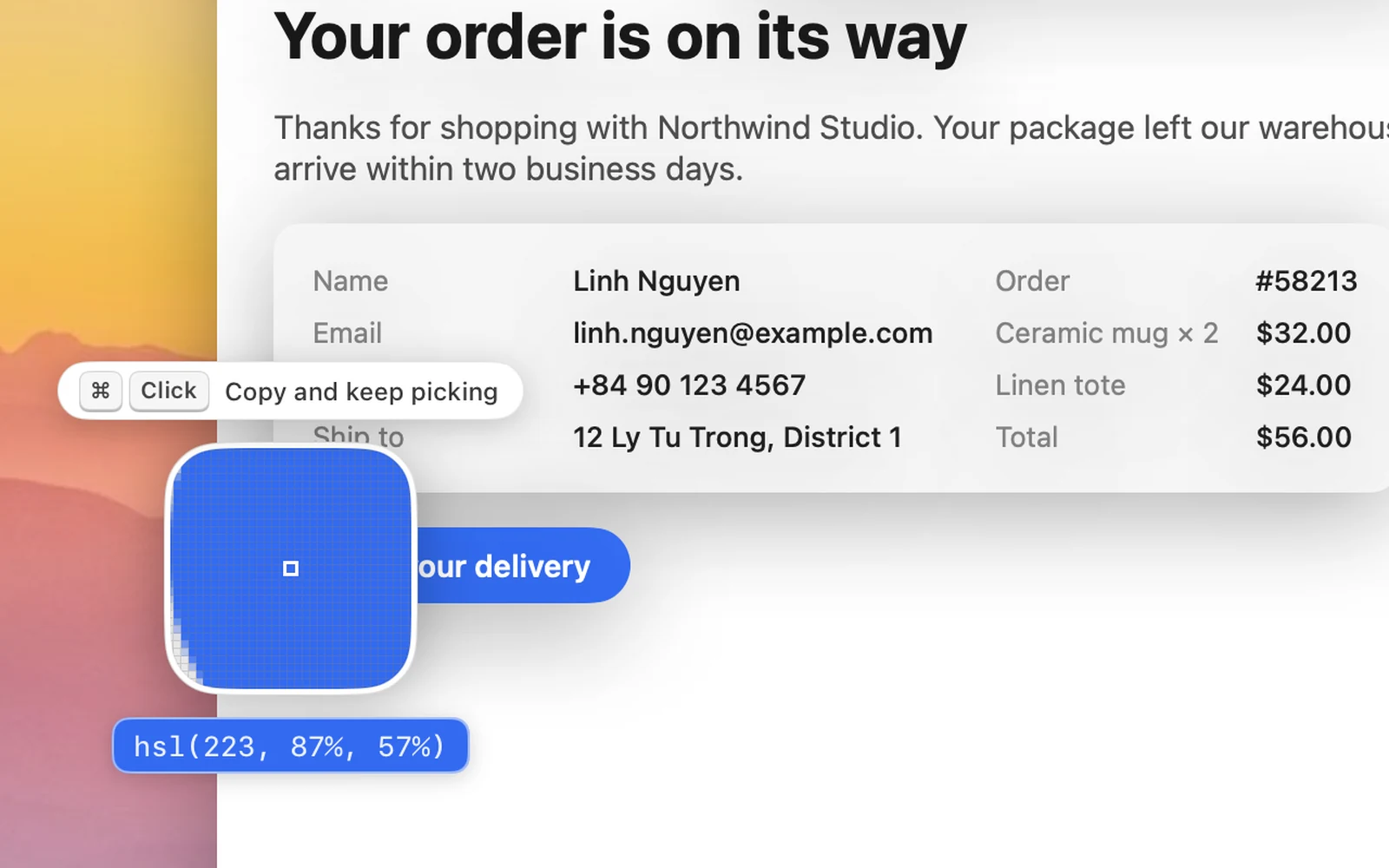
Keys while picking
| Key | What it does |
|---|---|
| Tab / ⇧Tab | Switch the format HEX → RGB → HSL → HSB (OneNotch remembers your choice) |
| ⌘-click | Copy, then keep picking more colors (up to 5 colors at a time) |
| Hold ⇧ | Precision mode: more zoom, slower pointer |
| W A S D or arrow keys | Move 1 pixel (hold ⇧ to move 10) |
| Scroll | Change the magnifier size |
| ⌘ + scroll | Change the zoom level |
| Esc | Close |
These tips also appear one by one above the magnifier.
Formats
#1E90FF, rgb(30, 144, 255), hsl(210, 100%, 56%) or hsb(210, 88%, 100%).
Good to know
- Pick Color needs the Screen Recording permission.
- Pick Color still works when you turn off Enable Screenshot.
- Change its shortcut in Settings › Shortcuts › Pick Color.