
Something just came up? Note it in Calendar or Reminders right from the notch, without opening the app.
Add
- Open the Calendar page in the notch and choose a day.
- Click Add at the bottom of the list.
- Type a name.
- Choose the type with the switch at the start of the bottom row: Reminder or Event. Next to it are the calendar or list chips; the highlighted chip is where it will be saved.
- Choose a time with the quick buttons (see below).
- Press Return or click the Save arrow button.
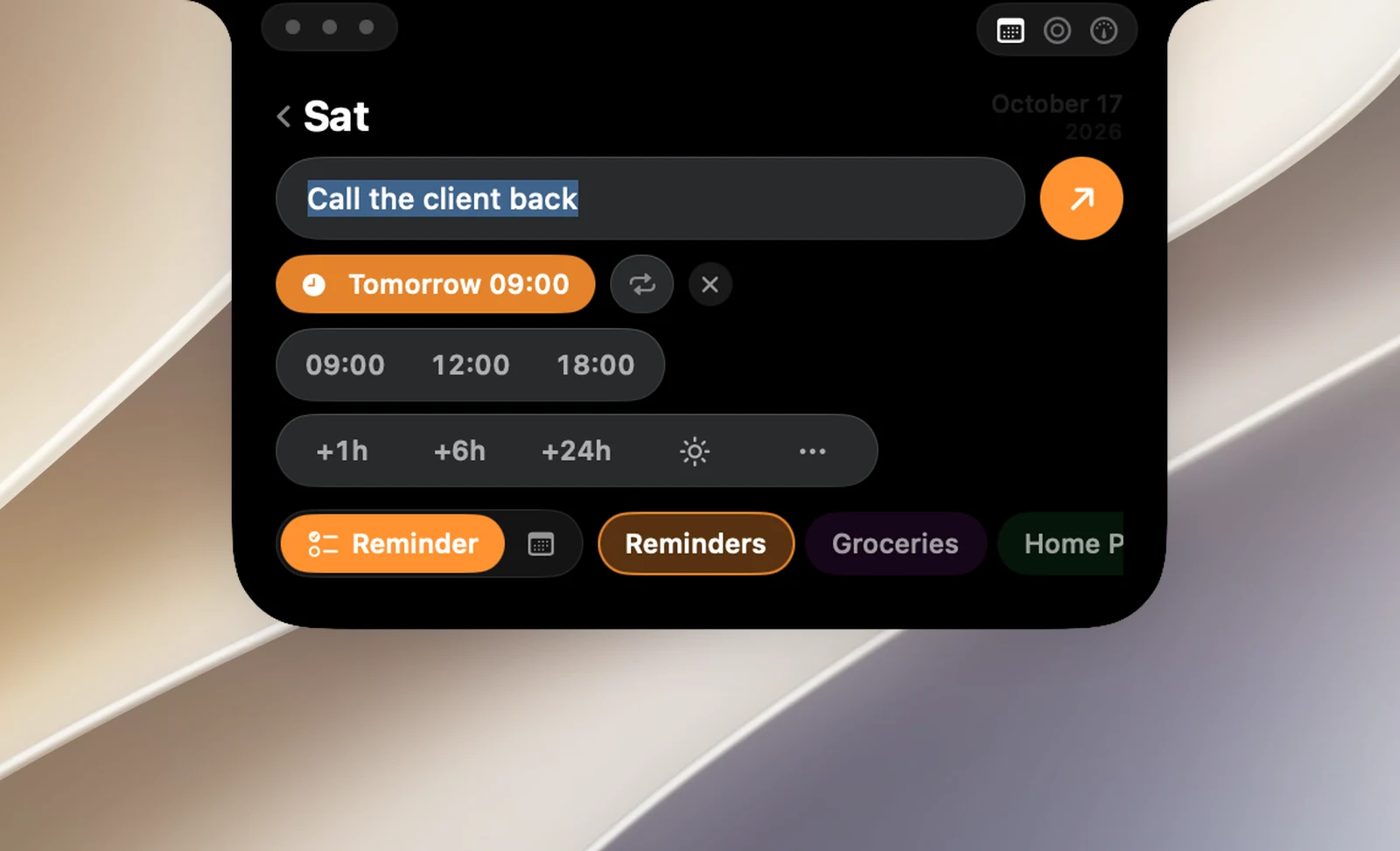
Press Esc or click Back to close the add field.
Time buttons
For reminders:
- 09:00, 12:00, 18:00: set that time on the day you're viewing.
- +1h, +6h, +24h: add to the current time; click several times to add more.
- ☀ All day, and … to choose a specific date and time.
- Reminders can be saved without a time.
For events:
- Today and the next three days, and − / + to go back or forward one day.
- ☀ All day, and … to choose a day on the month view.
- New events last 1 hour.
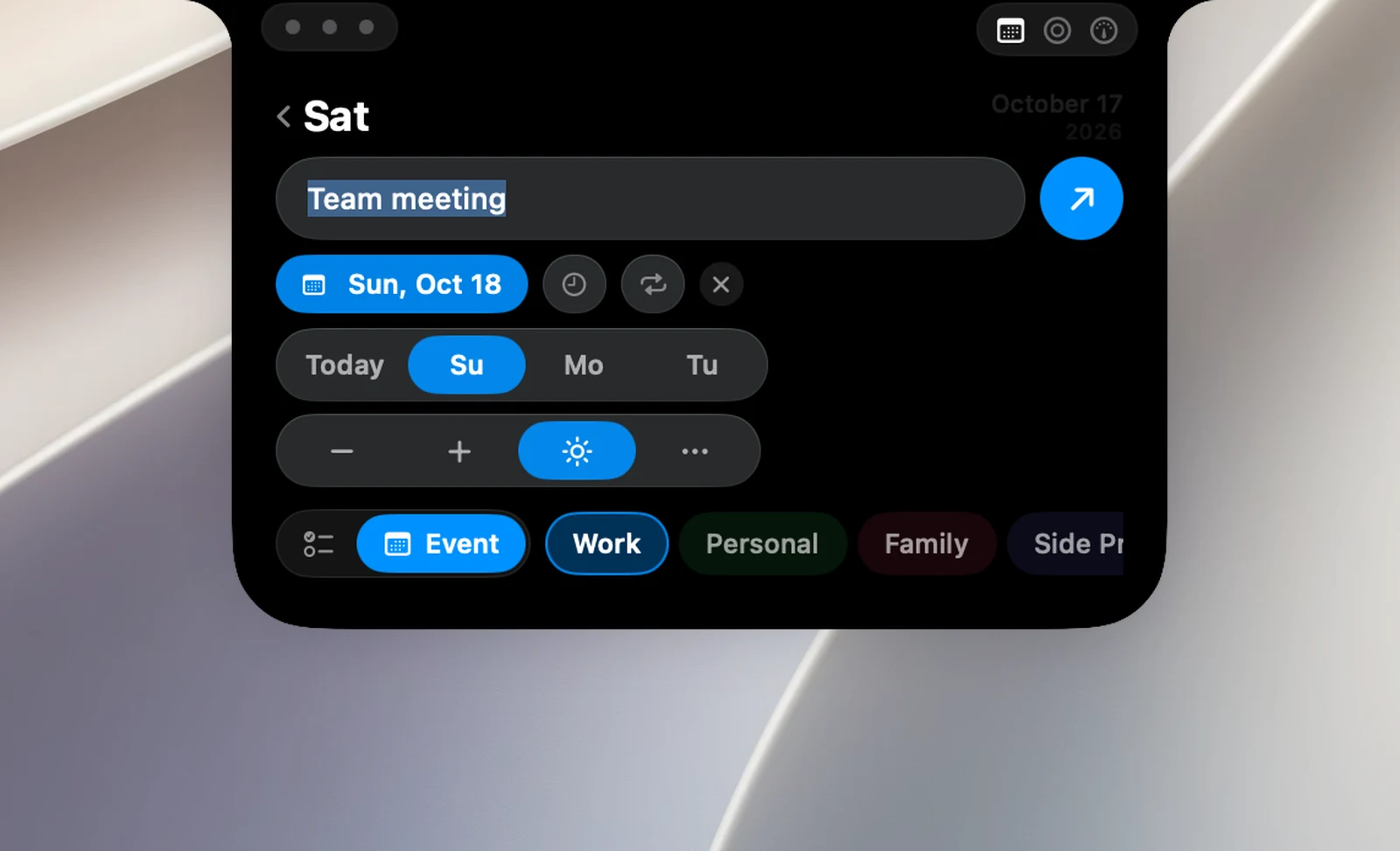
The time you choose appears as a chip; click ✕ on the chip to remove it. The Repeat button (once there's a time) lets you choose Every day, Every week, Every month or Every year.
Permissions needed
The first time you open the add field, macOS asks for access to Reminders; the first time you save an event, macOS asks for access to Calendar. If you declined, the add field shows an error with an Open Settings button.