
Turn on iCloud Sync on each of your Macs, and your clipboard history is available on all of them. Your data goes through your own iCloud and is stored encrypted. OneNotch has no server that holds your clipboard.
Turn on sync
- Make sure your Mac is signed in to iCloud in System Settings.
- Go to Settings › Clipboard › Sync and turn on iCloud Sync. OneNotch checks the connection to iCloud before turning it on.
- Repeat the two steps above on each of your other Macs.
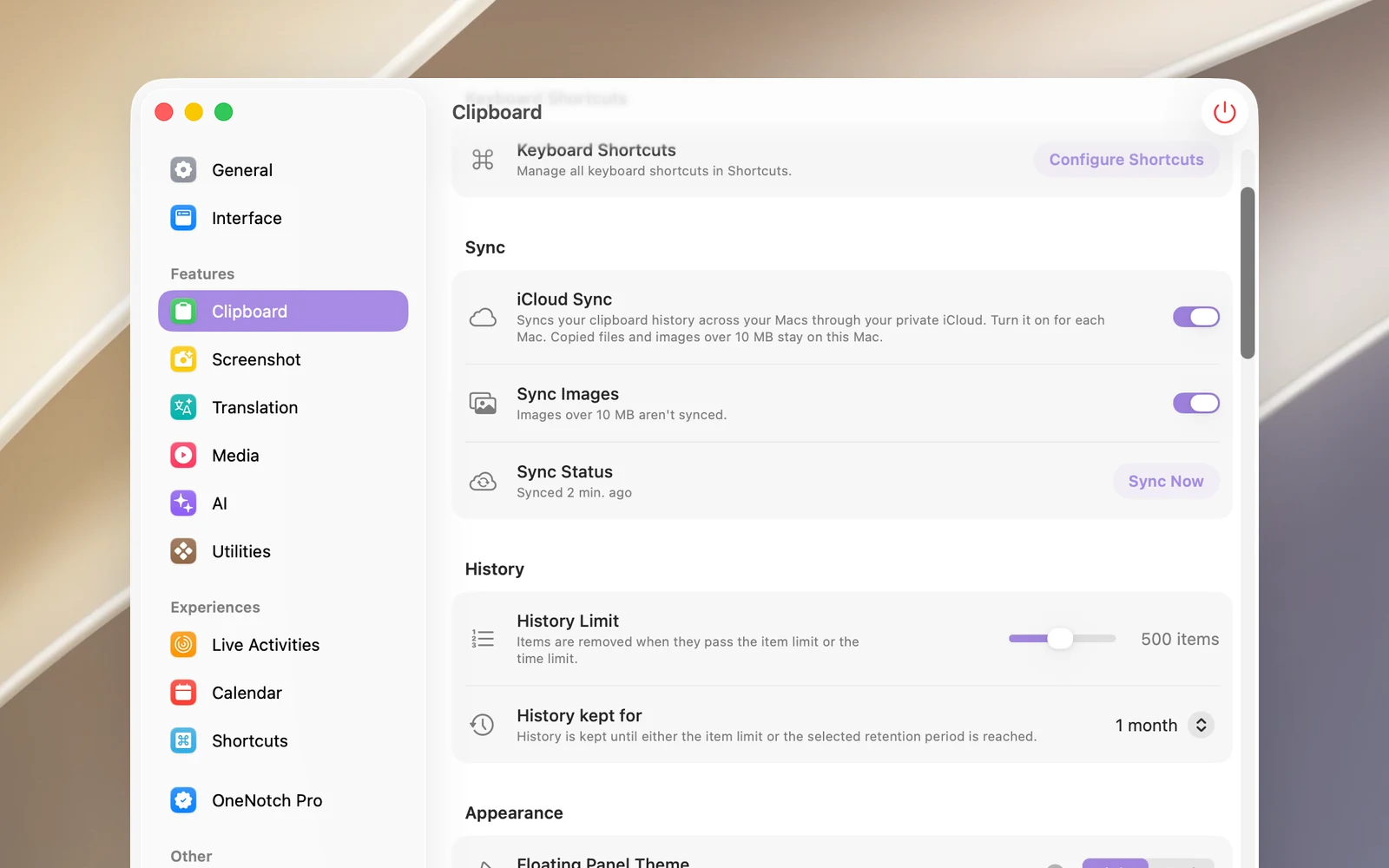
If it can't be turned on, OneNotch tells you why, for example your Mac isn't signed in to iCloud or your iCloud storage is full.
What syncs
- Text, formatted text, links and color codes.
- Images up to 10 MB, when Sync Images is on (on by default).
- When you delete an item or clear your whole history on one Mac, it's deleted on your other Macs too.
What doesn't sync: copied files (only their paths are saved, so other Macs can't open them), images larger than 10 MB, boards and pinned items, clip names, and text read from images.
Check the status
The Sync Status row shows the last sync, or why sync is paused (for example, iCloud is full). OneNotch syncs on its own, but you can click Sync Now to sync right away.
Turn off sync
Turn off iCloud Sync, then choose in the dialog:
- Turn Off: stops syncing and keeps the copy in iCloud.
- Turn Off and Delete iCloud Data: stops syncing and deletes OneNotch's clipboard data from iCloud.
Neither choice touches the history on this Mac.
Good to know
Sync only works between Macs. OneNotch has no app for iPhone or iPad.