
OneNotch finds synced lyrics for the song that's playing and shows each line at the right moment.
Show lyrics in the notch
Click the Lyrics button on the player, or turn on Show lyrics in notch player in Settings › Media. A line of lyrics appears right below the player.
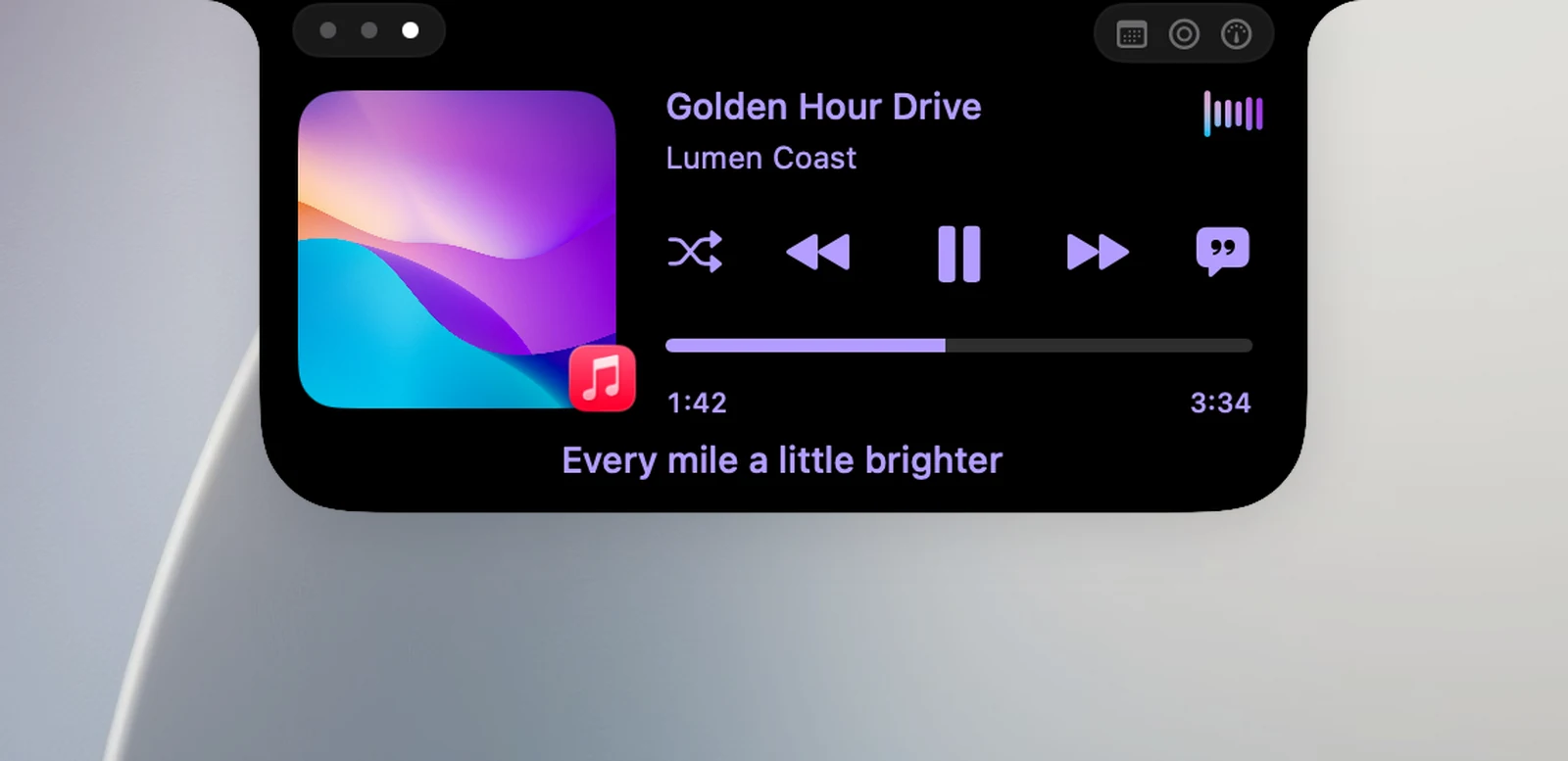
If a song has no lyrics, the notch shows No lyrics for this track.
Floating lyrics panel
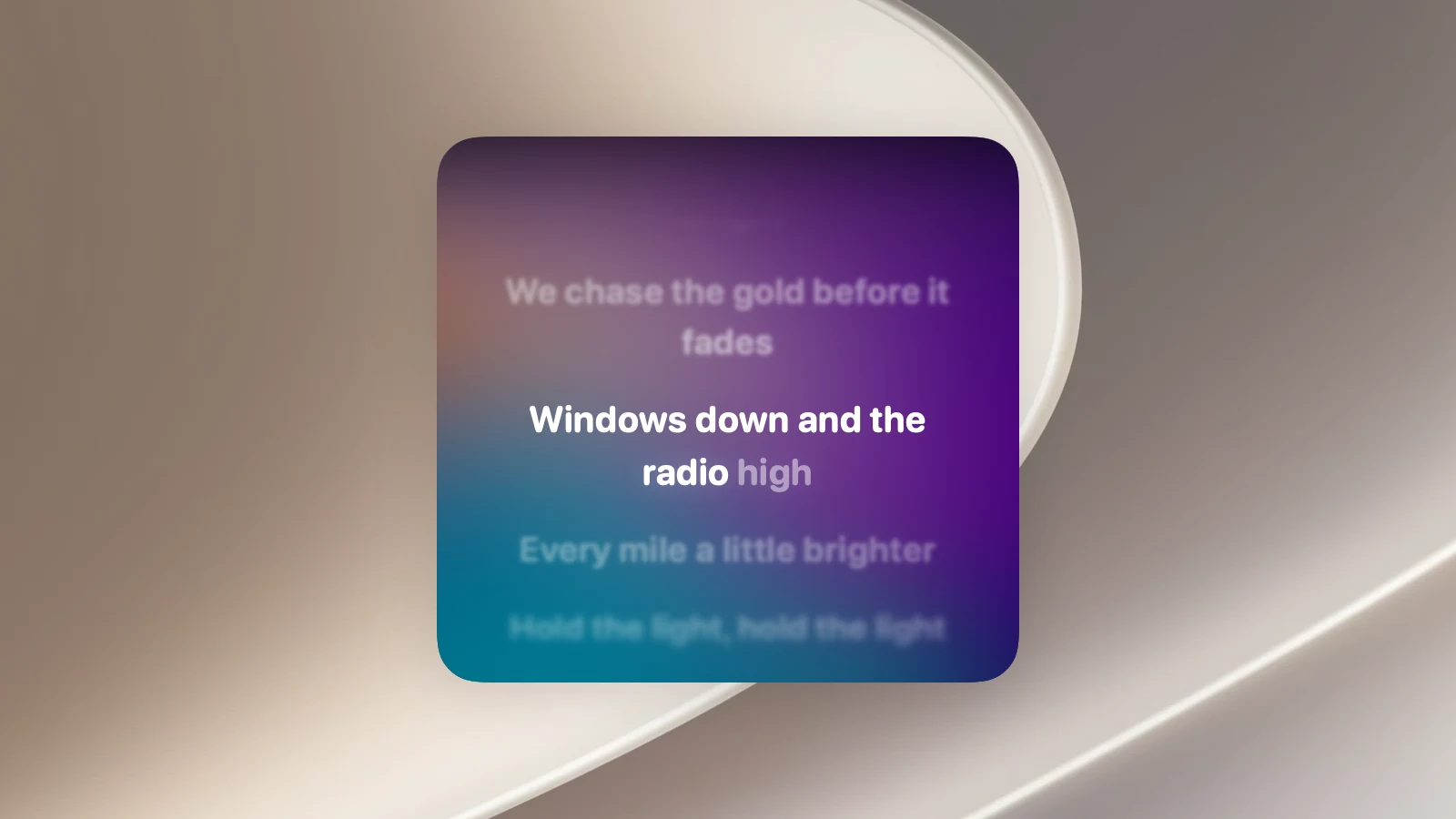
Click the line of lyrics in the notch to pop the lyrics out into their own floating window. This panel:
- Floats above every window and every Space, including full-screen apps.
- Drag anywhere on it to move it, and drag its edges to resize it. OneNotch remembers its position and size.
- When the pointer isn't over it, the panel shows only lyrics: the current line sharp in the middle, the lines around it faded.
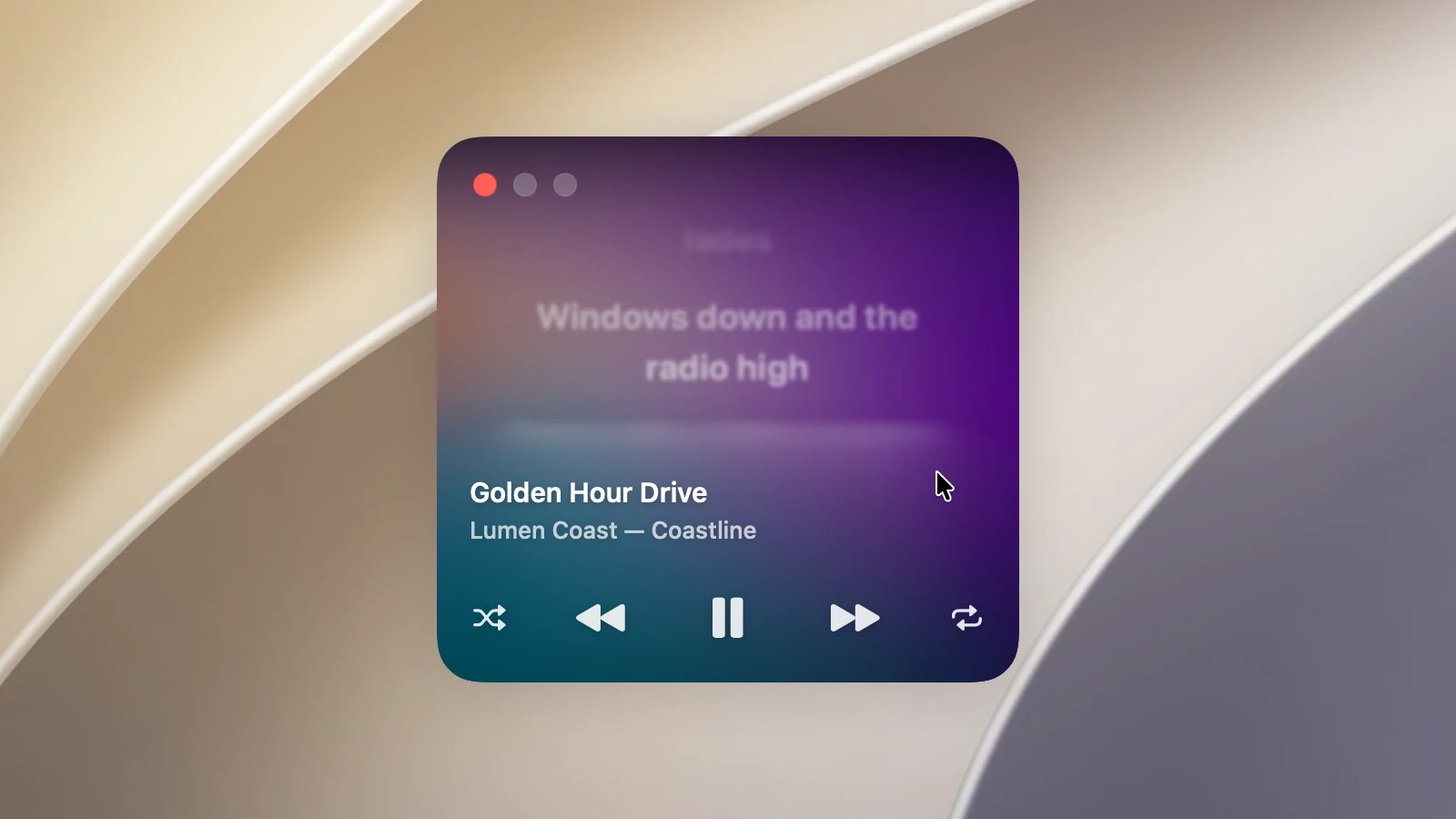
- Hover over it and the song title, artist and row of controls appear in the bottom half, while the lyrics fade above. Move the pointer away and the lyrics are clear again.
- Scroll to read ahead (the lyrics return to the current line after a few seconds), and click a line to jump to it.
- Click the red button in the corner to close it. The panel closes on its own when nothing is playing.
Word-by-word lyrics
Turn on Word-by-word lyrics (on by default) to highlight each word as it's sung, in the floating panel and on the lock screen. Songs without word timing still show lyrics line by line. The line of lyrics in the notch is always shown line by line.
Word-by-word lyrics from Apple Music need an Apple Music subscription and access to Media & Apple Music for OneNotch. If you declined this permission, Settings shows an Open Privacy Settings button so you can turn it back on.