
Open the notch
- Hover: move the pointer onto the notch and hold it there for a moment.
- Click: click the closed notch.
- Shortcut: press ⇧⌘V from anywhere, and press it again to close. The notch opens on the display with the pointer. If you don't move the pointer into it, the notch closes on its own after a few seconds.
- Swipe down: swipe down with two fingers on the notch. This works only when Open on hover is off.
Change the shortcut in Settings › Shortcuts › Toggle Notch Open.
Close the notch
The notch closes as soon as you move the pointer away from it. It stays open while you're typing in a field in the notch or have a menu open from the notch.
Customize
In Settings › General › Interaction:
- Open on hover (on by default). When it's off, you open the notch by clicking or swiping down.
- Hover delay: how long you hold the pointer over the notch before it opens (0 to 1.5 seconds, 0.1 seconds by default).
- Haptic feedback (on by default): the trackpad taps lightly when the notch opens, and when you swipe to switch pages or tracks.
- Show when idle (on by default). When it's off, the closed notch appears only when it has something to show (music, a timer, an AI agent, an alert); you can still hover over it to open it.
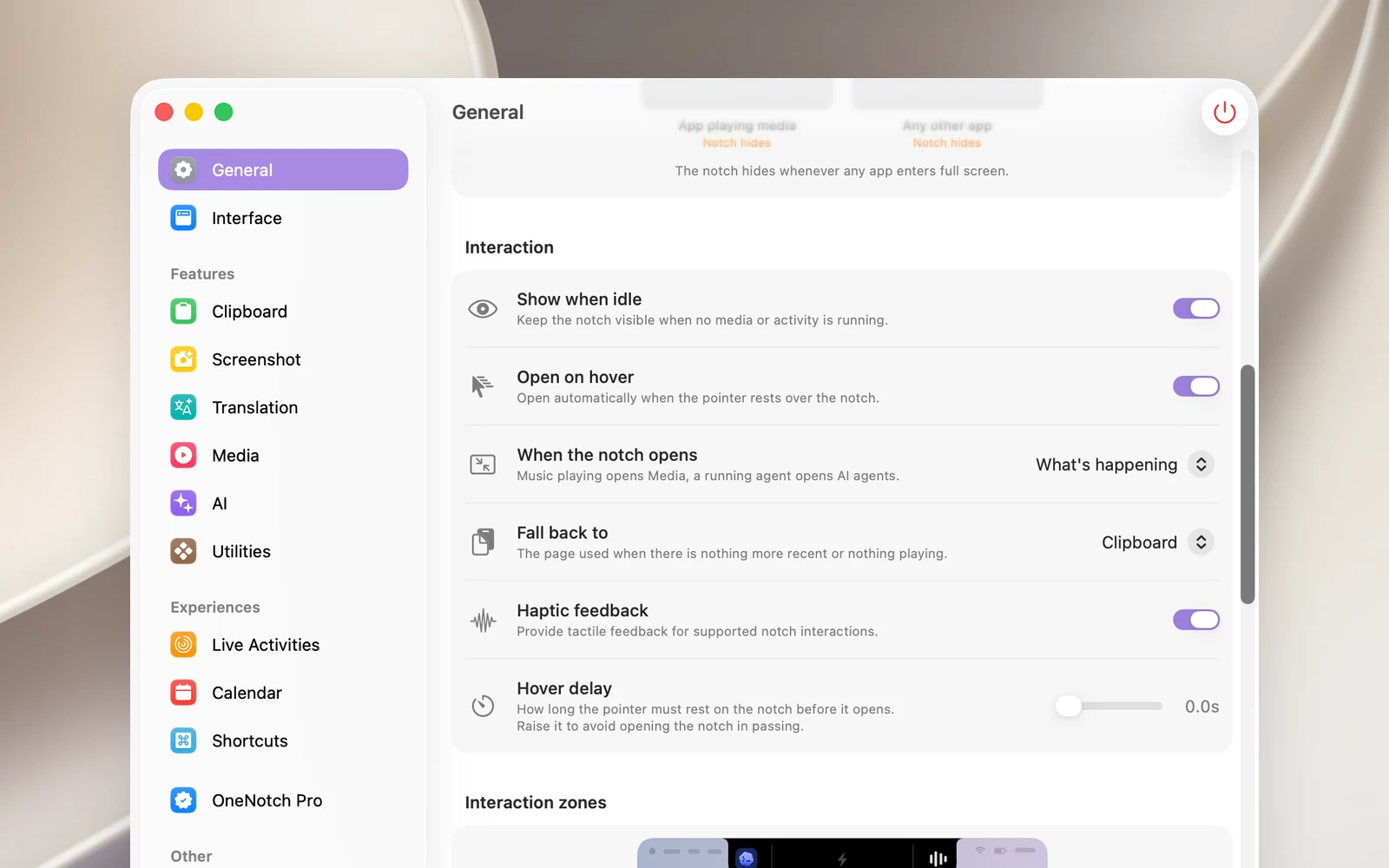
In Settings › General › Gestures, when opening on hover is off:
- Swipe down to open (on by default).
- Gesture sensitivity: High, Medium (default) or Low.
Note
While first-time setup is running, the notch doesn't open on hover yet.