
Choose a tool on the toolbar or press its letter key. After you draw, the tool stays selected so you can keep drawing; click without dragging, or click the selected tool again, to go back to Selection.
| Tool | Key | Use it to |
|---|---|---|
| Selection | V | Select, move and resize shapes you've drawn |
| Crop | C | Crop the image |
| Rectangle | R | Draw an outlined box |
| Filled Rectangle | F | Draw a solid block of color |
| Oval | O | Circle something |
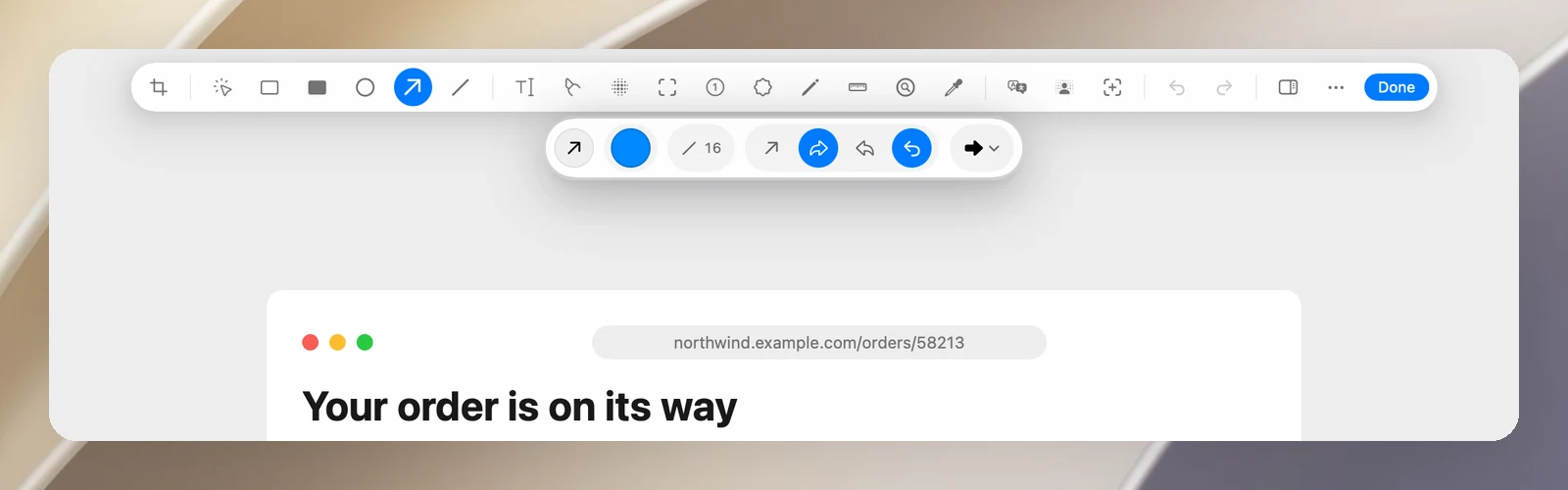
| Arrow | A | Point at something |
| Line | L | Strike through or connect |
| Text | T | Add text or a callout with a tail |
| Highlighter | H | Highlight text |
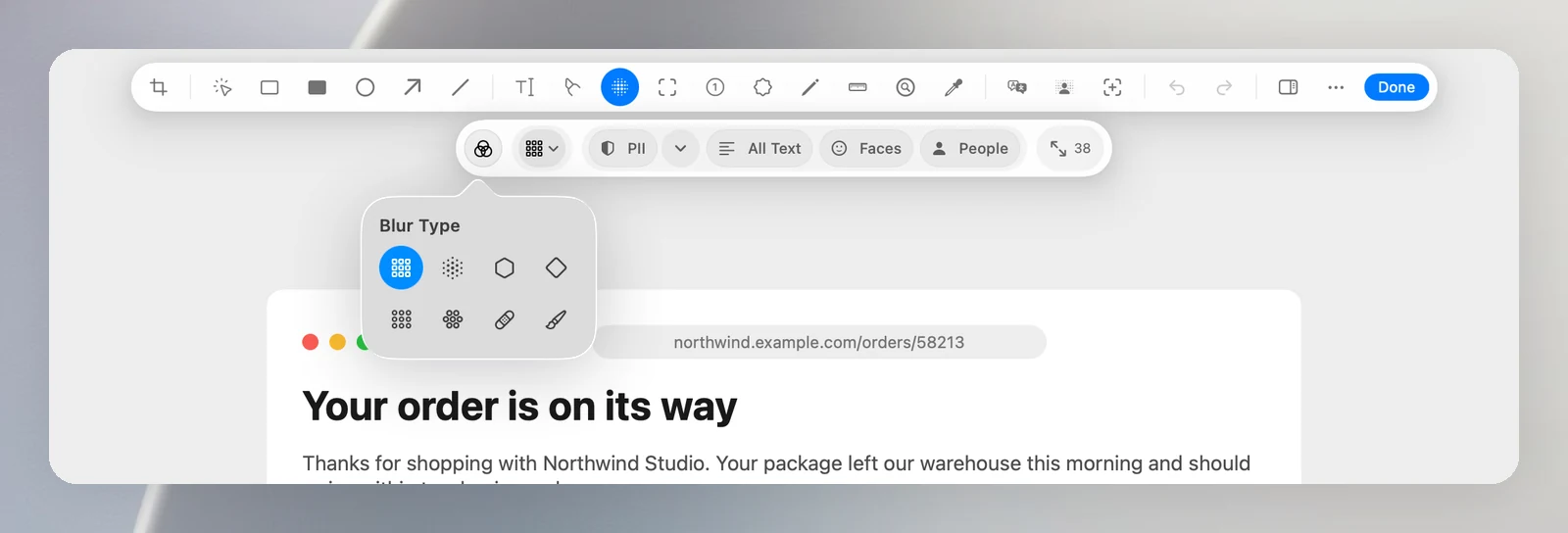
| Blur | B | Hide information |
| Spotlight | S | Darken everything except one area |
| Counter | N | Add numbers 1, 2, 3… |
| Watermark | W | Repeat faint text across the image |
| Pencil | P | Draw freehand |
| Measure | M | Measure distances |
| Magnifier | Enlarge a detail | |
| Color Picker | Pick a color from the image |
Tips for each tool
- Shapes and lines: hold ⇧ while dragging to get a square, a circle or a 45° angle. Adjust Color, Stroke, Corners and Line Style (Solid, Dashed, Dotted).
- Arrow: choose a straight or curved arrow, the shaft and head style, and Flip bend.
- Text: click to place text, double-click to edit it; ⌘↩ to finish, Esc to exit. Choose the Font, Background and Size; drag the tail handle to turn it into a callout.
- Highlighter: the stroke lines up with nearby text on its own. Hold ⌘ to turn this off for a moment.
- Blur: click the Blur Type button on the options bar to open a grid of 8 icons, and hover over an icon to see its name: Pixelated, Gaussian, Hexagonal, Starry, Grid, Gingham, Tape and Washi. Adjust the strength next to it. The Auto Redact group here finds and covers private information for you (see the separate article).
- Spotlight: adjust the Darkness of the area outside.
- Counter: each click adds the next number; drag the handle to add a pointer tail.
- Watermark: change the text ("OneNotch" by default), the style Single, Diagonal or Tiled, the Opacity and the Rotation.
- Magnifier: click to place it, then drag the lens somewhere else; choose a Zoom level from 2× to 6×.
- Color Picker: click a pixel to use its color for drawing; its HEX code is also copied.
Colors
Click the color swatch to choose from Colors, Favorites or Custom. Drag a color onto Drop colors in this spot to save it as a favorite.
Draw past the edge of the image
When you draw a shape or place text past the edge of the image, the canvas grows on its own to fit it.