
The AI usage page shows how much of your Claude Code and Codex quota you've used, when it resets, and your token counts and estimated cost.
Open the usage page
- Click the AI usage icon (a gauge) in the notch toolbar.
- Or click a quota chip at the top of the AI page.
- Or choose AI usage as the page the notch opens to by default.
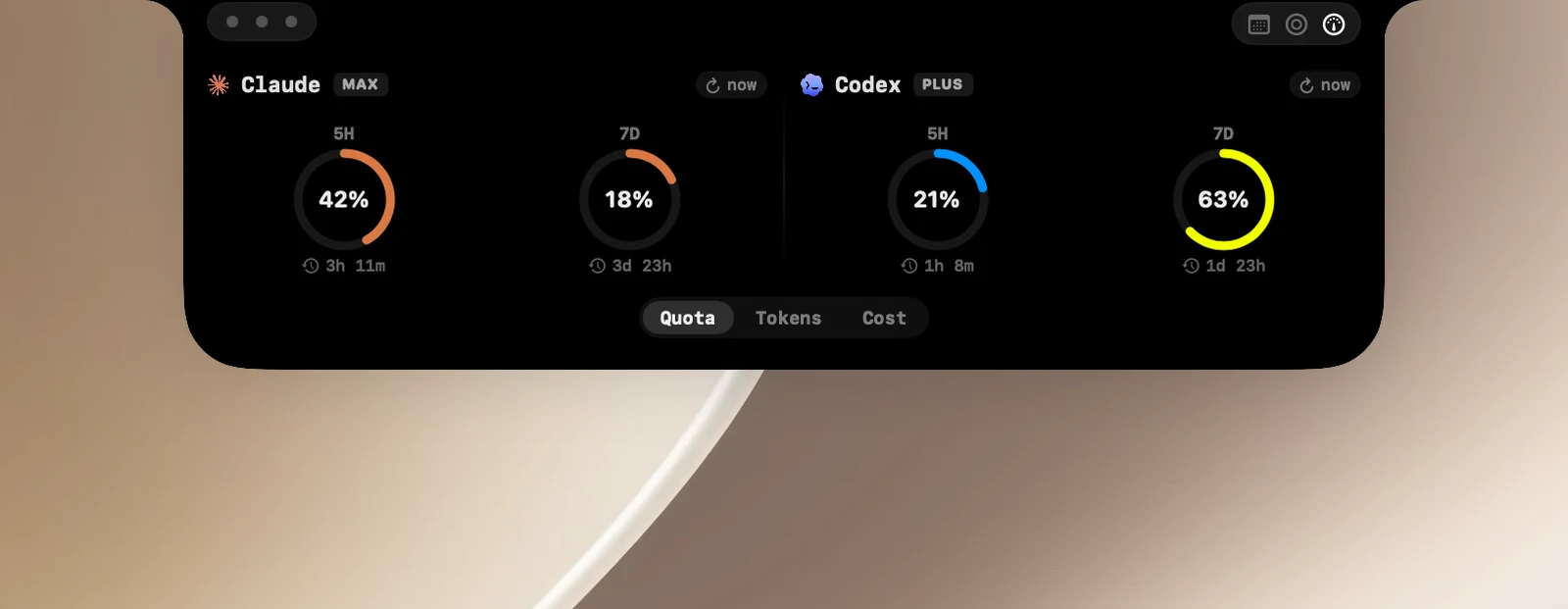
Three tabs
- Quota: each time window (5 hours, 7 days, per model) is a chart with the time left until it resets. The color turns yellow at 50% and red-orange at 70%. Click a chart to switch between a ring and a stepped bar.
- Tokens: today's and the last 7 days' tokens, split into input, output and cache.
- Cost: today's and the last 7 days' cost, based on published API prices. It's an estimate, not what you're actually charged.
To get fresh numbers right away, click the ↻ chip at the top of a column. For Codex, the "↻ N" chip shows how many limit resets you have available.
Change how percentages are shown
Settings › AI › Show percentage as: Used or Remaining.
Get notified when your quota resets
Turn on Announce quota resets in Settings › AI › Quota (on by default). When the 5-hour or weekly window resets, the notch plays a chime and shows a ring filling back up. Click the ▶ button next to this row to try it.
If you only use Claude on the web or in the desktop app, OneNotch may not see that usage.
When the page shows no data
- Not connected: the terminal version of the agent wasn't found. See "When the notch doesn't see your agent".
- Signed out: open Terminal, run
claude, then type/login(for Codex:codex login). - Waiting for quota: use the agent once to get the first numbers.