
OneNotch uses the notch to tell you about small changes on your Mac without getting in your way. Click an alert to dismiss it right away.
Types of alerts
Turn each type on or off in Settings › Live Activities › Activity Types:
- Charging state: when you plug in or unplug the charger.
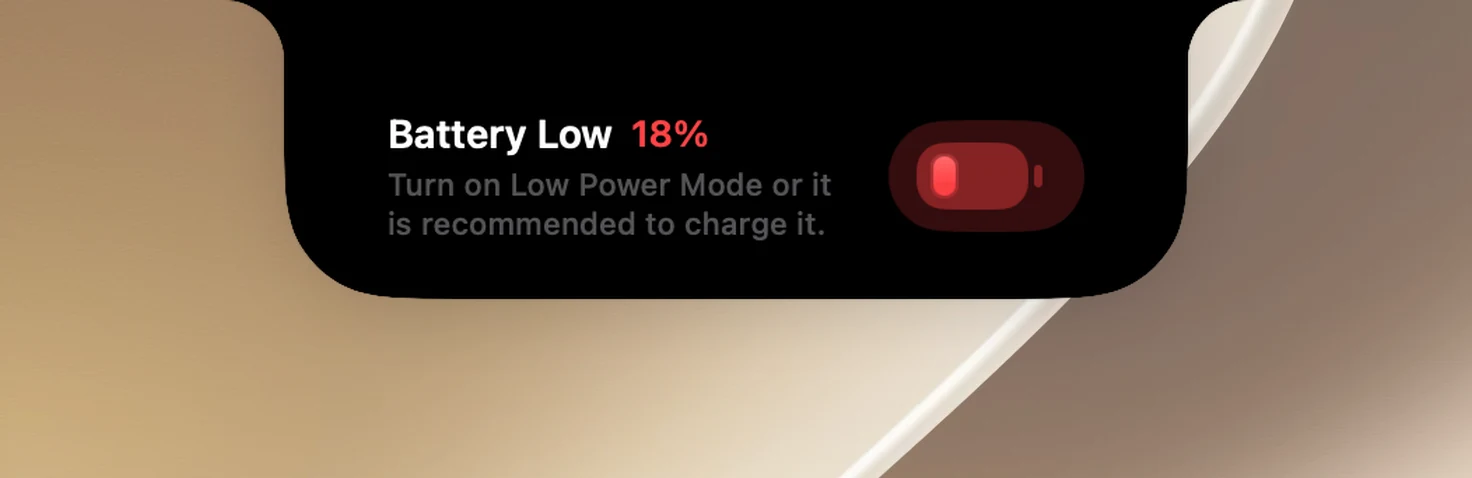
- Low battery: when the battery drops to 20% while on battery power.
- Full battery: when the battery is fully charged.
- No internet connection: when you actually lose your internet connection.
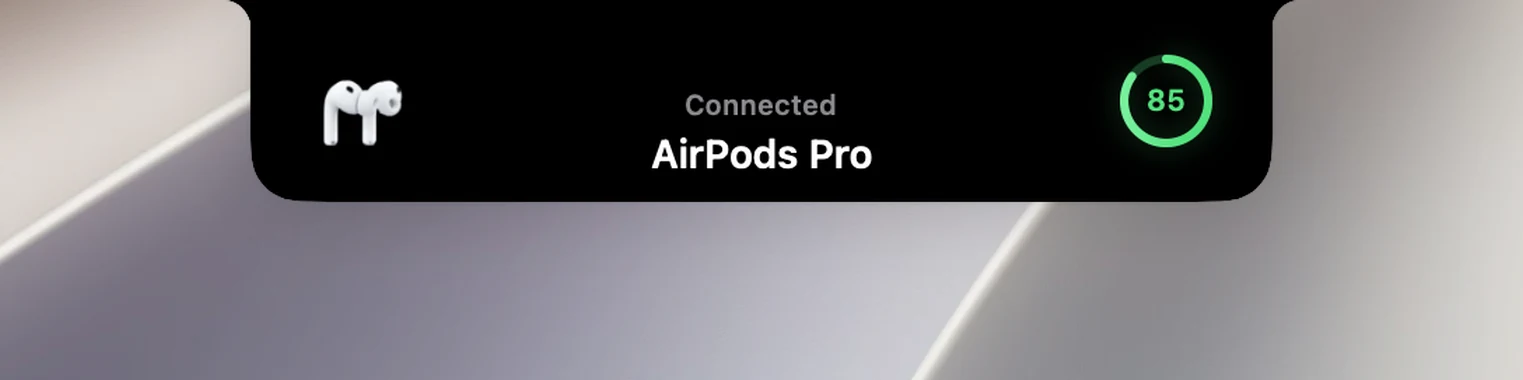
- Bluetooth: when headphones, a speaker, a keyboard, a mouse or a game controller connects, along with the device's battery level.
- Focus mode: when you turn a Focus on or off.
- Now playing: music on the closed notch (see "Music on the closed notch").
The three battery alerts are only available on Macs with a battery. Each row has a ▶ Preview in the notch button to try it.
Compact or detailed
Alert style: Detailed (the default) uses a larger panel for low battery, full battery and no connection, and keeps the Bluetooth panel expanded. Compact shows only a small strip; the Bluetooth panel expands when you hover over it.
Caps Lock
Caps Lock (in the Indicators section, on by default) shows a brief indicator whenever you turn Caps Lock on or off. It doesn't need any permissions and doesn't depend on replacing the HUD.
Focus icons
For Focus alerts to show the right icon and color for Focuses you've created, OneNotch needs Full Disk Access. Click Request Full Disk Access in the same section. Without it, the alert still shows the Focus name.