
When an app is in full screen
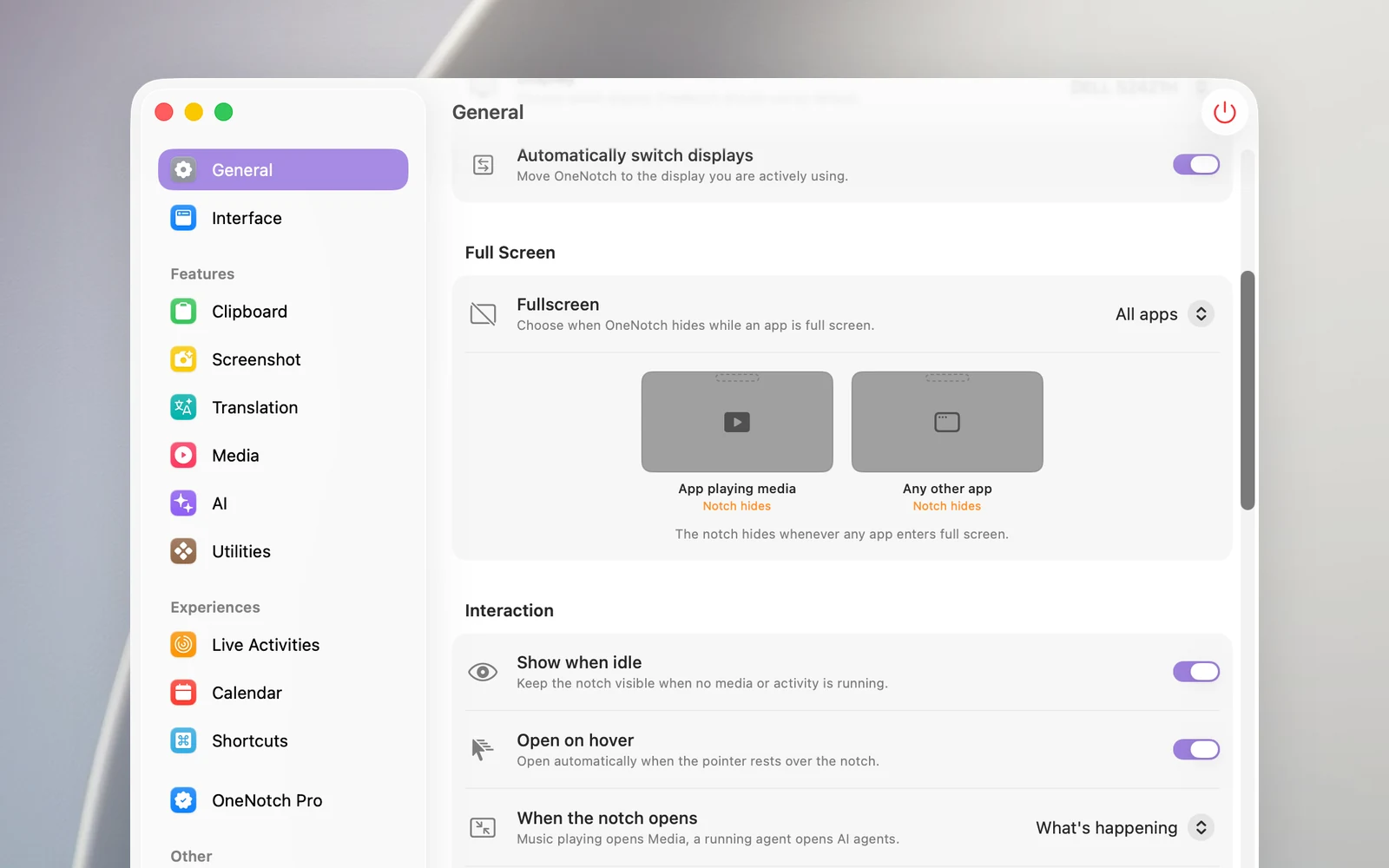
In Settings › General › Full Screen, choose:
- All apps (default): the notch hides when any app is in full screen.
- Hide only while playing media: the notch hides only when the full-screen app is the one playing music or video, like when you watch a movie.
- Never hide.
When you capture or record the screen
Settings › General › Privacy & Capture › Hide during capture decides whether the notch appears in screenshots and screen recordings (from macOS, video meeting apps and screen recording apps). The options are:
- Never hide (default): the notch always appears in images and videos. This is also the only option that keeps the notch in screenshots taken with OneNotch itself.
- Hide during capture.
- When closed: hides only when the notch is closed.
- When closed and inactive: hides only when the notch is closed and isn't showing anything.
- Hide from other apps only.
Choose Hide during capture when you share your screen in a meeting and don't want others to see your clipboard or alerts in the notch.