
The focus timer runs right on the notch: choose a mode, set the minutes and start. The countdown shows on the closed notch, and OneNotch lets you know when time is up. Eye break reminders now have their own button; see "Eye Break (20-20-20)".
Start a session
- Open the notch and click the Focus icon in the toolbar (it's there by default; you can move it to an orb in Settings › Interface › Notch layout).
- Click the mode name to Change mode: Task, Break, Reminder or Custom (give the session your own name). Each mode starts from the length set for it.
- Adjust the minutes if you like: scroll or drag on the ruler (1 to 120 minutes), or click − / +. The new value is saved as that mode's length.
- Click ▶ Start.
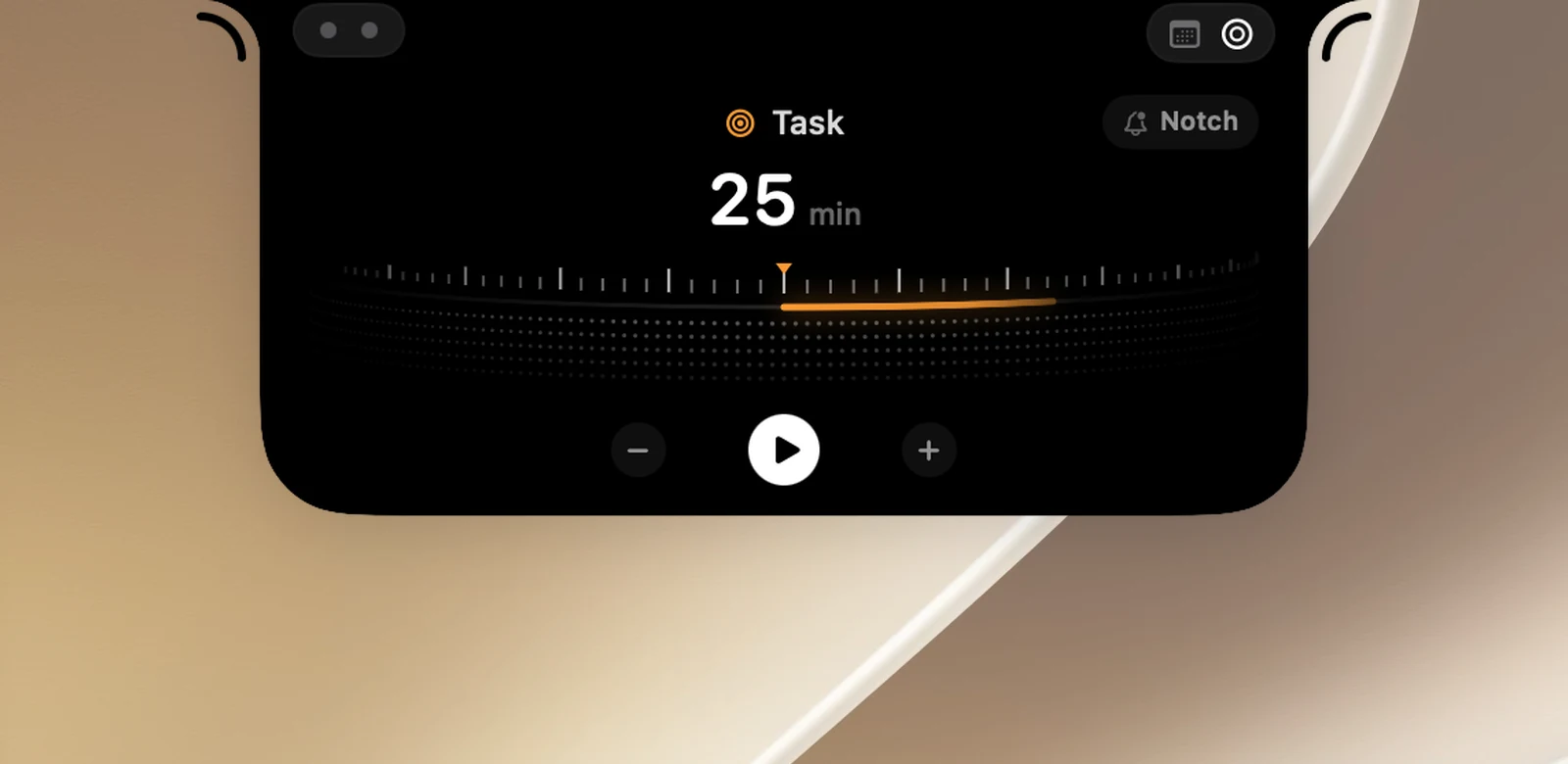
While a session is running, the buttons are ✕ Stop, ⏸ Pause and +5 (Add 5 minutes). During a break, +5 becomes ⏭ Skip break: the break ends and the next session starts right away.
On the closed notch
The countdown appears on the right side of the notch and the mode icon on the left. Click it to open the timer page again. The session keeps running if you restart OneNotch.

If Heads-up before the end is on, a short line appears below the notch 2 minutes before a session of 10 minutes or longer ends, for example "Task · 2 min left".
When time is up
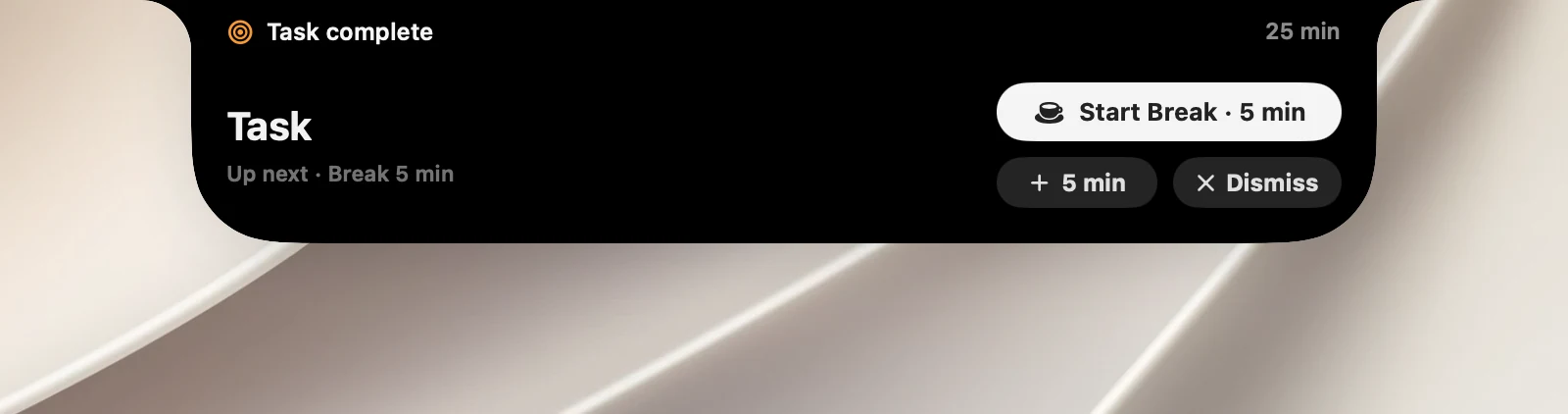
OneNotch plays a sound and shows an alert in the style you choose with the button in the right corner of the timer page, or in Settings › Utilities › Pomodoro:
- Full screen (the default): dims the lower part of the screen until you dismiss it. It has a button to start the next session (Task → Break, Break → Task), a snooze button and Close. Press Esc or click anywhere to dismiss it.
- Notch: a card slides out of the notch and hides itself after 30 seconds. Swipe left to dismiss it, or swipe right to add 5 minutes.
From the card, you can snooze for 1, 5 or 15 minutes.
Work and break cycles
Pomodoro can chain sessions together for you:
- Long break: after a set number of task sessions, the next break is a long one. When this is on, the dots next to the mode name on the Pomodoro page show how many sessions you've finished before the long break.
- Start breaks automatically: when a task session ends, the break starts after a 10-second countdown.
- Start the next task automatically: when a break ends, the next task session starts after a 10-second countdown, if you're back at your Mac.
Dismissing the card or closing the alert stops the countdown. Nothing starts on its own while you're away from your Mac.
Settings › Utilities › Pomodoro
Session lengths
| Mode | Default | Options |
|---|---|---|
| Task | 25 min | 15, 20, 25, 30, 45, 50, 60 or 90 min |
| Break | 5 min | 3, 5, 10 or 15 min |
| Reminder | 15 min | 5, 10, 15, 30, 45 or 60 min |
Cycle
- Long break: Off (the default) or Every 2 … 6 tasks.
- Long break length: 10, 15 (the default), 20 or 30 minutes.
- Start breaks automatically and Start the next task automatically: off by default.
When a session ends
- Sound: the sound that plays when a session ends (Bottle by default, or Off). Choosing a sound plays a preview right away.
- Heads-up before the end: off by default.
- Alert style: Full screen or Notch.
A Pomodoro break also counts as an Eye Break. No permissions are needed.