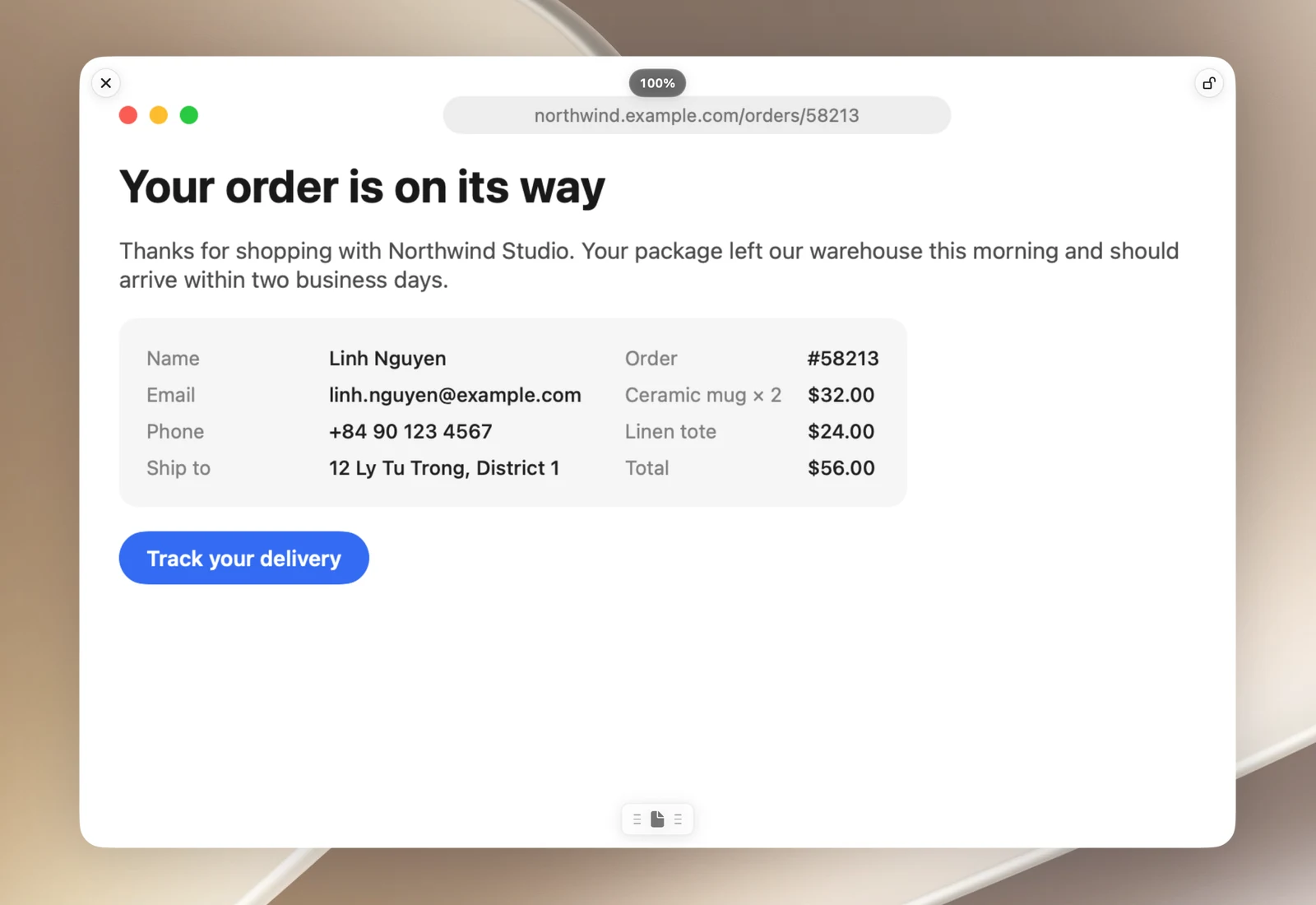
Pin a screenshot to the screen so it floats above every window and every Space, handy when you need to copy figures or compare designs.
Pin
- On the preview card after a capture, click Stick on Screen (or hover over the card and press ⌘P).
- In Area & Markup mode, click Stick on Screen to save and pin it at once.
Use a pinned image
- Drag to move it.
- Scroll or pinch to zoom, or click the percentage pill and choose from 50% to 200%, or Fit.
- Drag the handle to drop the image into another app.
- Click the lock button (Lock it and fade out under the pointer): clicks pass through the image and it fades when the pointer moves over it, so you can work underneath.
- Click ✕ Unpin, or hover over the image and press Esc, to close it.