
Grab text from places where you can't select it: images, videos, scanned PDFs, app windows.
Grab text
- Press ⇧⌘2 or choose menu bar › Screenshot › Text (OCR).
- Select the area with the text (the border is green). Press A if you want to select a whole window.
- Release the mouse button. The notch shows Extracting content...; click ✕ on it to cancel.
- The text is put on your clipboard and a result card appears under the notch.
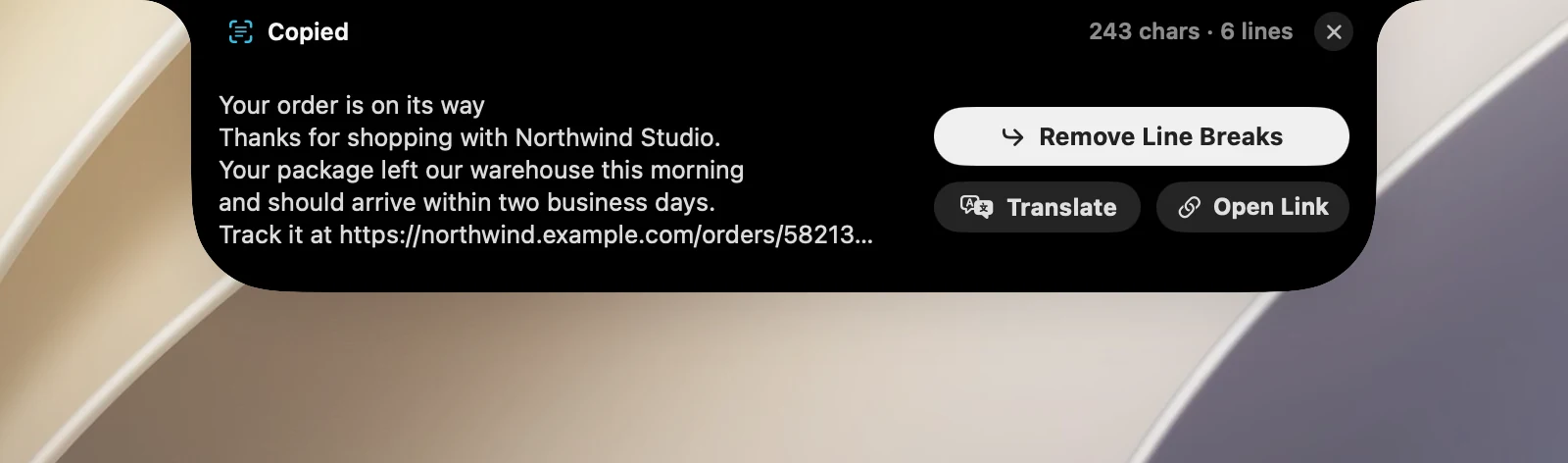
The result card
- The top of the card shows the number of characters and lines; the body shows up to the first 5 lines.
- Remove Line Breaks: copies the text again with the lines joined into one paragraph, handy for text from narrow columns.
- Translate: opens a translation of the text in the notch.
- Open Link: appears when the text contains a web address.
The card hides on its own after 10 seconds (hover over it to keep it open), or press Esc or click ✕ to close it.
QR codes
QR codes in the selection are read at the same time as the text. The text content of a QR code is added at the end, under the heading QR Codes. If the area only has one QR code, you get exactly that code's content.
Good to know
- Recognition runs entirely on your Mac. The first time in each session, it may take a few seconds to load the model.
- The recognition language follows OneNotch's language (Settings › General › App language).
- OCR doesn't save an image file and doesn't show the image preview card.
- It needs the Screen Recording permission.