
Looking at a screen for too long tires your eyes. Eye Break follows the 20-20-20 rule: every 20 minutes of screen time, look at something far away for 20 seconds. The reminder card appears only on the notch and goes away on its own; it doesn't dim your screen.
Open and turn it on
Eye Break has its own button on the notch (an icon with two eyes). By default, the button is in the Left orb: open the notch, hover over the small arc at the top-left corner of the notch so the column of buttons drops down, then click Eye Break. To move the button to the right orb or the toolbar, see "Customize the notch layout".
To turn it on, choose one of these:
- On the Eye Break page, click ▶ Turn on Eye Break.
- Right-click the Eye Break button and choose Turn on Eye Break.
- Go to Settings › Utilities › Eye Break and turn on Eye Break. Click ▶ Preview in the notch on the same row to try the reminder card.
While it's on, the icon on the notch changes color so you know.
How a break works
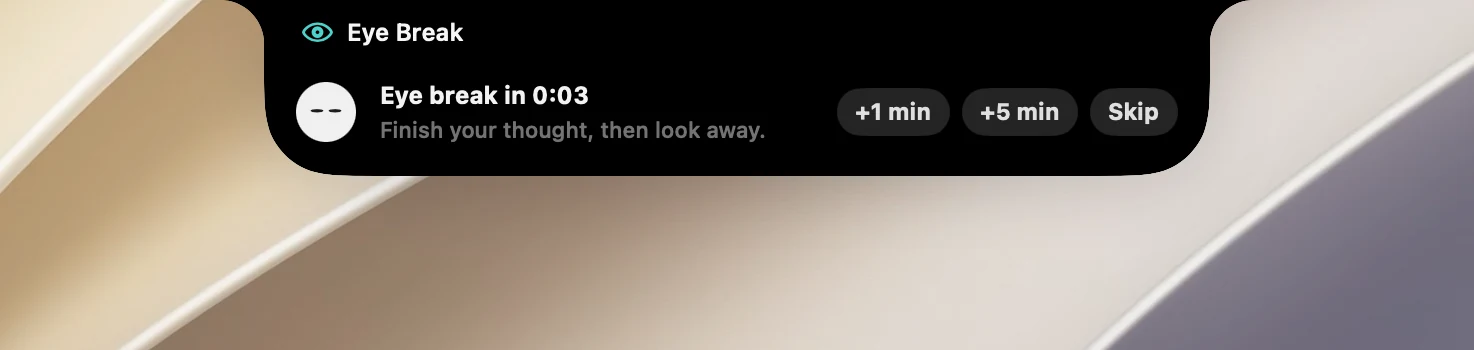
- One minute before the break, the Eye break in … card appears below the notch with +1 min, +5 min and Skip.
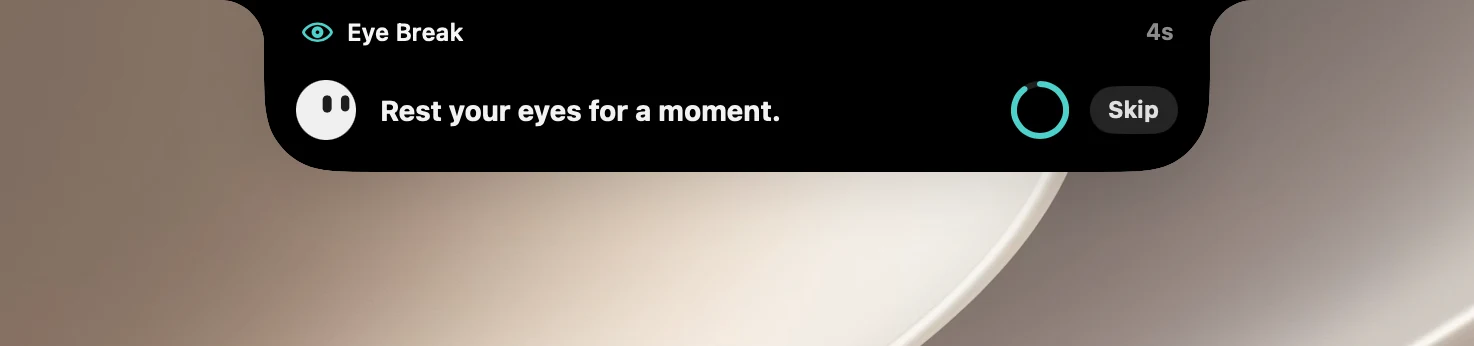
- When it's time, the break card shows a reminder such as "Look at something far away." and a countdown ring.
- Near the end of the break (the last quarter), the Skip button changes to Done. Clicking Done at this point still counts as a break.
- When time is up, the card says "Nice. Back to it." and plays a sound.
If the notch is open, the break waits until the notch closes.
Counts only while you use your Mac
Time is counted only while you're actually using your Mac. Stepping away for 5 minutes counts as a break and restarts the count. While you're watching a video or an AI agent is running, it takes 15 minutes without touching your Mac to count as stepping away. A Pomodoro break also counts as an eye break.
Doesn't interrupt when you're busy
While you're typing, dragging or presenting (Presenting mode), a break always waits. With Don't interrupt calls, videos and games (on by default), a break also waits while the camera or microphone is in use, while a calendar event is in progress, while the app in front is playing video, or while a game is open.
The Eye Break page shows what it's waiting for. If an app keeps the microphone open all the time (such as a calling app left open all day), click Don't wait to ignore that reason until the next break.
The Eye Break page
The page shows the minutes left until the next break, a row of dots for each minute and today's stats (breaks taken, breaks skipped, screen time).
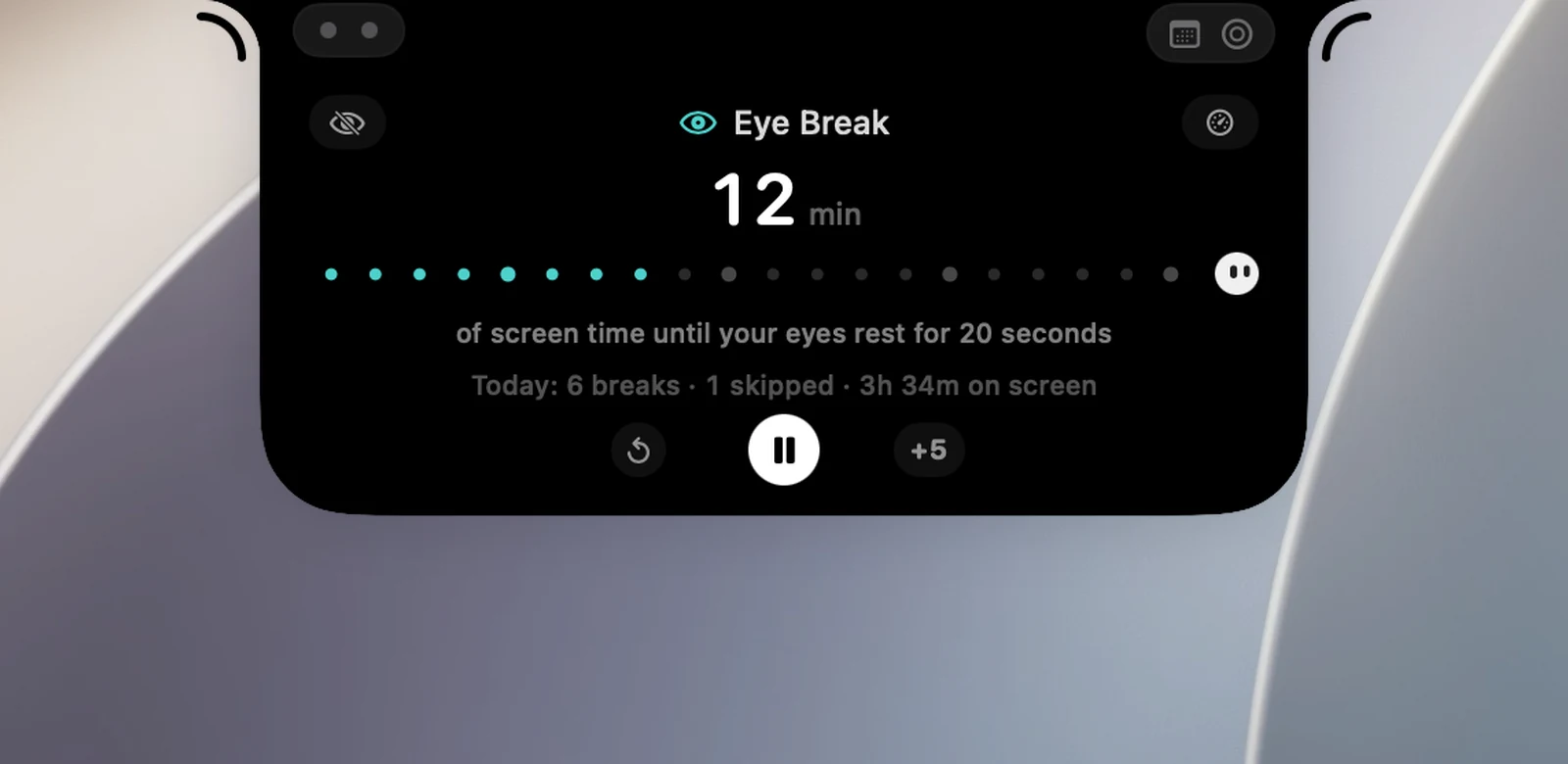
While it's on:
- The crossed-out eye button left of the title: Take a break now. The notch closes so the break card can appear.
- ⟲ I just rested — start over.
- ⏸ opens a menu with Pause for 1 hour, Pause until tomorrow and Turn off Eye Break.
- +5: pushes the next break back 5 minutes.
While it's off, the buttons are −, ▶ and +: click − / + to change the time between breaks, and ▶ to turn it on.
Click the gauge button to the right of the title to Show today's eye rest score: a score from 0 to 10 based on the number of breaks, your longest stretch of continuous screen time and how often you got up, plus a 7-day trend. Click the stats line to see today, 7 days or 30 days.
Pause
Pause for 1 hour and Pause until tomorrow give Eye Break a rest without turning it off completely. "Tomorrow" means 6 AM the next day (at least one hour from when you click). While paused, Nudges pause too, and the pause is kept if you reopen OneNotch.
The Eye Break page and Settings › Utilities › Eye Break both show Paused until …. Click ▶ on the page or Resume in Settings to start again right away.
Right-click menu
Right-click the Eye Break button (in an orb or on the toolbar) to act quickly without opening the page:
- While it's on: Take a break now, I just rested — start over, Next eye break 5 minutes later, Pause for 1 hour, Pause until tomorrow, Turn off Eye Break.
- While it's paused: the Paused until … line, Resume Eye Break, Turn off Eye Break.
- While it's off: Turn on Eye Break.
Customize in Settings › Utilities › Eye Break
| Setting | Default | What it does |
|---|---|---|
| Don't interrupt calls, videos and games | On | Waits while you're busy (see above). |
| Heads-up before breaks | On | Shows the heads-up card one minute ahead. When it's off, a break starts without warning. |
| Sound | Bottle | Plays once when a break ends. |
| Also play when a break starts | Off | Plays the same sound for a few seconds when a break starts, in case you aren't looking at the notch. |
| Break every | 20 min | 20, 30, 45 or 60 minutes of screen time. |
| Break length | 20 sec | 20, 40 or 60 seconds. |
| Long break | Off | Every 3, 4 or 5 breaks, one break asks you to get up for a few minutes. |
| Long break length | 5 min | 3, 5 or 10 minutes. |
| Nudges | Off | A few words appear below the notch for 3 seconds, reminding you in turn to blink and to sit up straight. |
| Remind every | 15, 20, 30 or 45 minutes of screen time between nudges. |
No permissions are needed. If you've granted access to Calendars, an event in progress also counts as being busy.